


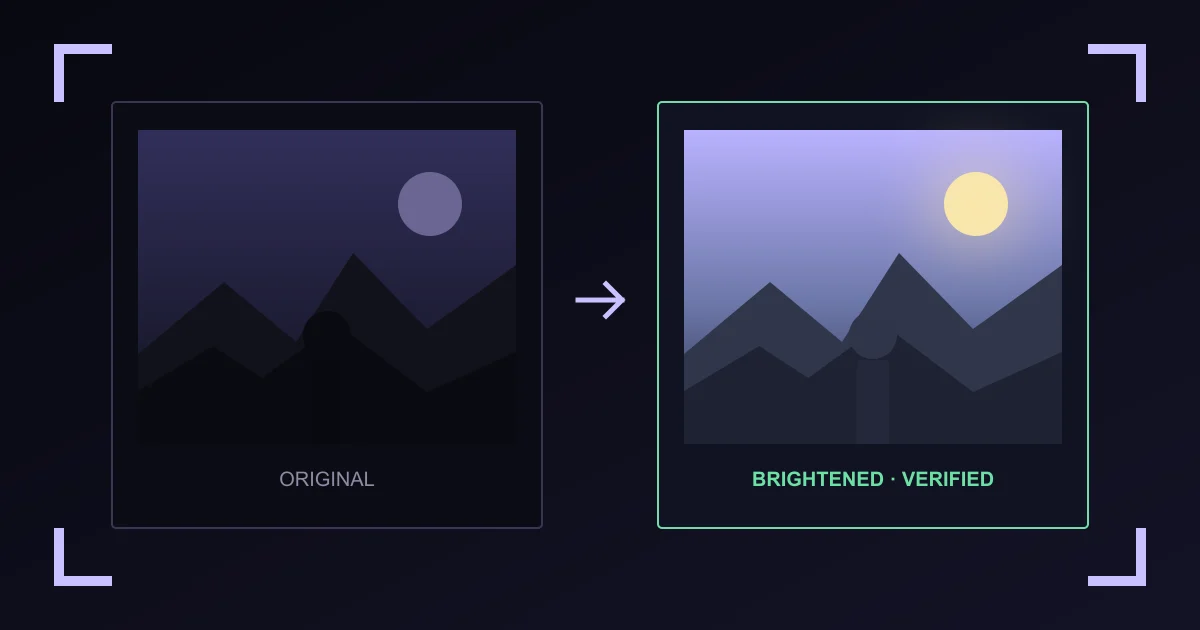
Method checked
How the image brightener works
Vaultaire decodes one still image into an upright sRGB pixel grid, applies a fixed linear-light tone curve, encodes a new file, then decodes that output again. Download stays locked until the measured luminance rises and clipping remains within the profile limit.
Lighten a picture, brighten a photo
Lighten and brighten name the same operation here. The tool raises a tone curve so dark areas read higher, so there is no separate lightener mode. Use the same three profiles to make a picture brighter, whether the file is a phone photo, a scan, or a screenshot.
The tool takes one still picture at a time. There is no batch queue, no sign-in, no install, and no watermark on the output.
Which brightening profile should I use?
Natural is the safest start for an evenly dim photo. Shadow lift opens the darkest regions more. Backlit protects a bright sky or window while lifting a darker subject.
The tool makes an initial recommendation from a luminance histogram. It does not identify faces, objects, or the scene, and it does not use an AI model.
What changes in the new image?
The width and height stay fixed. The pixel values change, and a JPEG or WebP may also gain encoder loss. Stored orientation is applied once. Browser canvas processing uses an 8-bit sRGB working image, so this is not a print, raw-photo, wide-gamut, or HDR mastering workflow.
Highlight protection and lost detail
Brightening can reveal detail that was recorded but hard to see. It cannot recover texture from clipped white areas, crushed black areas, blur, or noise that replaced the original signal. The profile curves taper their lift near white, and the second decode measures clipping before download.
Local processing and metadata
The selected bytes move between this page and a same-origin worker. Fixed analytics events record actions such as choose, brighten, and download, never the image, filename, dimensions, profile, or output.
The new image does not copy supported EXIF, GPS, XMP, IPTC, copyright, origin, or C2PA records. Keep the original if those records matter. Use the photo metadata tool when you want to inspect them first.
Image brightener FAQ
How do I brighten a dark photo?
Choose one still JPEG, PNG, or WebP, compare the three processed previews, and select the look that fits the photo. Vaultaire processes the full image and unlocks download after local checks pass.
How do I lighten an image online for free?
Open this page and choose the file. Lightening and brightening are the same operation here, and the tool is free with no account, no install, and no watermark.
How do I make a picture brighter?
Select the picture, then pick Natural, Shadow lift, or Backlit. Each profile applies a different fixed tone curve. Compare the previews before you process the full file.
Can I brighten a photo without losing quality?
Brightening always changes pixel values, so the output is not identical to the original. A PNG is re-encoded without extra loss. A JPEG or WebP output adds encoder loss on top of the tone change. Keep the original file if you may want a different edit later.
Does it work on a phone?
Yes, in a mobile browser that supports Web Workers, createImageBitmap, and OffscreenCanvas encoding. Large images use more memory on a phone, so the 20 MB and 16,000,000 pixel limits still apply.
Which brightening profile should I choose?
Start with Natural. Use Shadow lift when the darkest areas still hide useful detail. Use Backlit when a subject is dark against a bright sky, screen, or window.
Can it restore detail from a black area?
Only if the file still contains tonal differences there. Brightening cannot recreate detail that was clipped, crushed, blurred, or never captured.
Does the image brightener use AI?
No. It uses fixed tone curves and a luminance histogram. It does not run a generative model or identify scene content.
Will brightening clip the highlights?
The curves taper near white and a second decode measures clipping. Download is blocked if the output exceeds the selected profile limit, but you should still inspect the result for your intended use.
Does the new image keep EXIF or GPS metadata?
No supported EXIF, GPS, XMP, IPTC, origin, or C2PA records are copied. The output is scanned again, though no browser scanner can rule out every proprietary or pixel-embedded signal.
Is my image uploaded?
No. Brightening and verification run inside your browser. Fixed analytics events contain action names, not image bytes, filenames, dimensions, profiles, or outputs.