Should You Turn Off Share With App Developers? iPhone Analytics (2026)
Many people reviewing their iPhone Settings stop at Share With App Developers, inside Analytics & Improvements. The name does not say who gets what, so it is hard to know whether to leave it on or whether turning it off will cause problems. This guide explains where the setting is and what it shares, which in-app analytics keep running when it is off, and how to decide whether to share. Turning off all analytics sent to Apple is covered in a separate guide, so this one sticks to sharing with developers.
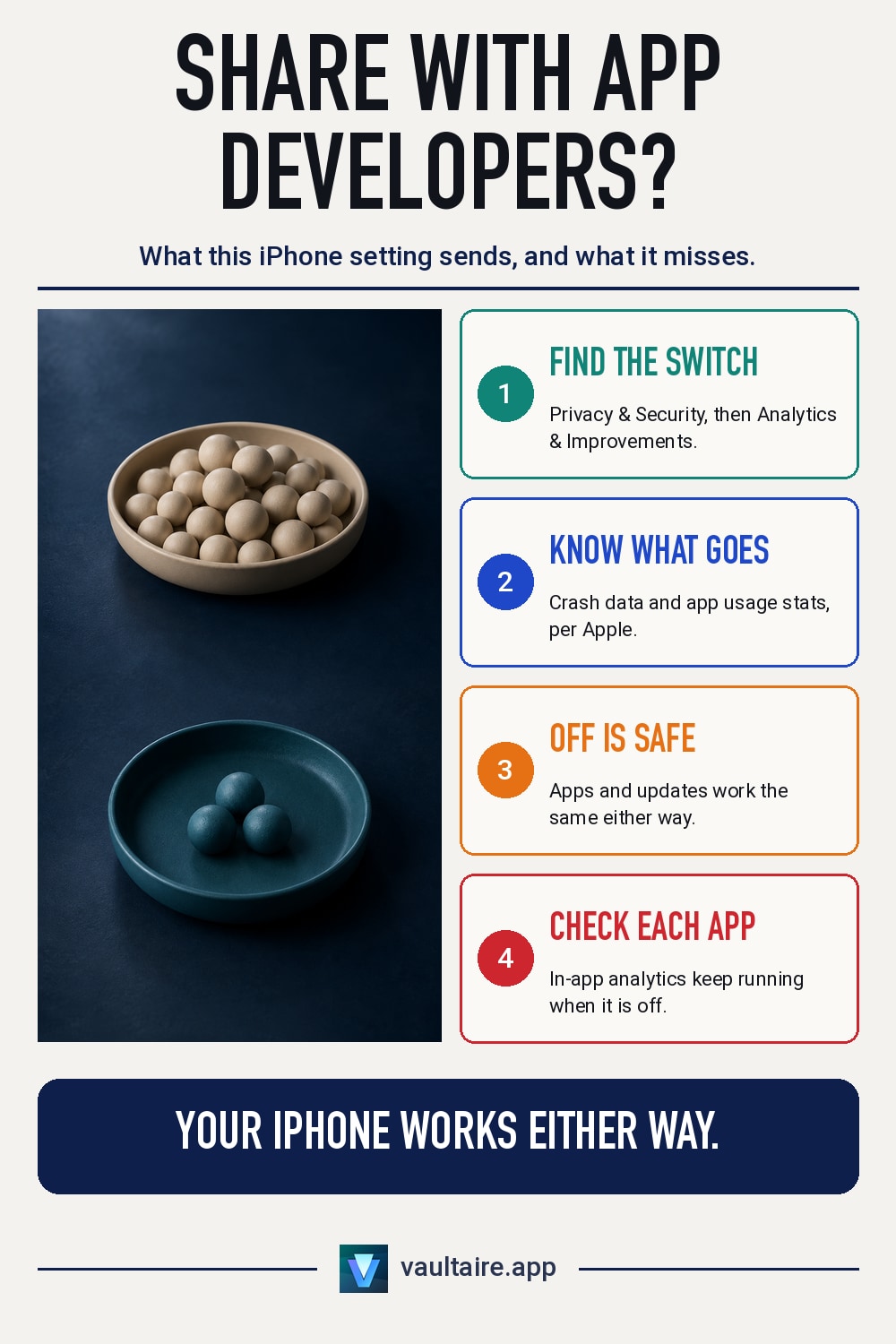
Share With App Developers lets Apple pass crash information and app usage statistics to the developer who made each app. Apple says it provides this in aggregated form or in a form that does not identify you, and turning it off does not affect how your iPhone or apps work. Leave it on if you want to help fix bugs, or turn it off if you want to send less data. Analytics tools that an app builds in itself are not stopped by this setting, so check any app you are unsure about on its own.
Where is Share With App Developers?
Open Settings, tap Privacy & Security, and choose Analytics & Improvements at the bottom. Share iPhone Analytics is at the top of the screen, and Share With App Developers sits below it. The exact label can vary slightly by iOS version, but it is the same setting. Apple's support page describes it as an option you can also turn on when you share iPhone analytics with Apple. In other words, it works in two layers: first you share with Apple, then you choose whether developers get it too.
The same screen lists other analytics toggles, such as Share iCloud Analytics and the option to improve Siri and Dictation. Each one has a different destination and different contents, so turning off one does not stop the others. To review everything sent to Apple at once, see how to turn off iPhone analytics sharing and check every toggle. If you open Analytics Data at the bottom of Analytics & Improvements, you can also see a list of logs your iPhone has recorded. The contents are technical records you do not need to read, but they give you a way to see for yourself what your device records.
What developers get when it is on
According to Apple's App Analytics and Privacy page, this setting gives developers crash data and statistics about how you use their app. For example, technical records from when an app crashes, or how often you open it. Apple says it provides this in aggregated form or in a form that does not identify you. What developers receive are statistics that combine the numbers of many users, plus records that help them fix bugs. It is not a way to send the contents of your photos or messages to developers.
On the developer side, this data shows up as analytics and crash reports in a dashboard called App Store Connect. Apple's developer help says the app usage numbers come only from users who agreed to share with developers. Put another way, if you turn it off, you are not counted in the developer's statistics. Smaller developers in particular rely on these numbers to find and fix bugs, so leaving it on may help the apps you use get fixed a little sooner. That is the main reason people say you should share.
In-app analytics that keep running when it is off
This is the part most people misunderstand. Share With App Developers controls only the analytics that Apple collects and passes to developers. Apple's own page also says analytics that developers build into their apps are not covered. Many apps include their own analytics or crash reporting tools, and that traffic does not go through Apple. It goes straight from the app to the servers of the developer or the tool provider. Turning off this setting on your iPhone does not stop it. To stop it, turn it off in the app's own settings, or delete the app.
You can see what an app collects under App Privacy on its App Store page. It lists the data the developer says it collects and whether that data is linked to you. To see where apps actually connect, go to Privacy & Security in Settings and turn on App Privacy Report, which records the domains each app contacts. Whether apps can track you across other apps and websites for ads is decided by yet another setting, Tracking, where you can turn off Allow Apps to Request to Track. Analytics, tracking, and in-app analytics tools are separate systems, so check them together with the iPhone privacy settings to change right now.
Should you share? How to decide
In short, your iPhone works the same whether this setting is on or off. If you are unsure, here is a simple way to decide. If you want bugs in your favorite apps fixed, or you want to support developers, leave it on. If you feel better sending less data, or you want to keep outside traffic to a minimum on a work device, turn it off. Either way, records Apple has already received are not erased. Only what gets sent from now on changes. If you change your mind, you can switch it back on the same screen at any time.
If what you really want to protect is the contents of your photos and documents, you need more than analytics settings. When you choose a vault app, check that app's own analytics too. For example, Vaultaire sends anonymous usage data and crash data by default. This is an in-app setting, separate from the iPhone's Share With App Developers, and one switch turns off both analytics and crash reports. Vaultaire's servers never receive your files or keys. Your files are encrypted with AES-256-GCM using a random key, and the pattern you draw unlocks that key. For what to look for in a secure app, see the photo vault app security audit.
Related guides
- How to turn off iPhone analytics sharing
- iPhone privacy settings to change right now
- Are photo vault apps safe? A security audit
- What is zero-knowledge encryption? A simple guide
Sources
Frequently asked questions
Will anything go wrong if I turn off Share With App Developers?
No. Turning it off does not affect app features, updates, or how your iPhone works. The only change is that crash information and usage statistics no longer reach developers through Apple. On the developer side, your device is no longer counted in their statistics.
If I share, will developers learn my name or see my photos?
Apple says it provides the analytics it passes to developers in aggregated form or in a form that does not identify you. The contents are statistics such as technical crash records and how often you use an app. It is not a way to send the contents of your photos or messages.
If I turn it off, do all app analytics stop?
No. This setting controls only the analytics that Apple collects and passes to developers. Analytics tools that an app builds in itself send data directly from the app. To stop them, use the app's own settings, or check what it collects under App Privacy in the App Store before you decide whether to use it.
Does this setting also stop Vaultaire's analytics?
No. Vaultaire's analytics and crash reports are managed by an in-app setting and are on by default. One switch in Vaultaire's settings turns both off together. Either way, Vaultaire's servers never receive your files or keys.