Samsung Secure Folder vs iPhone: What to Know Before You Switch (2026)
People moving from a Samsung Galaxy to an iPhone tend to get stuck on the same question: does the iPhone have a Secure Folder? It does not. The iPhone has no separate encrypted space that holds apps, photos, files and contacts together. Still, most of what Samsung Secure Folder does has a counterpart on the iPhone. This guide compares the two, explains how to move your files out of Secure Folder before you switch, and then goes through the iPhone alternatives one by one.
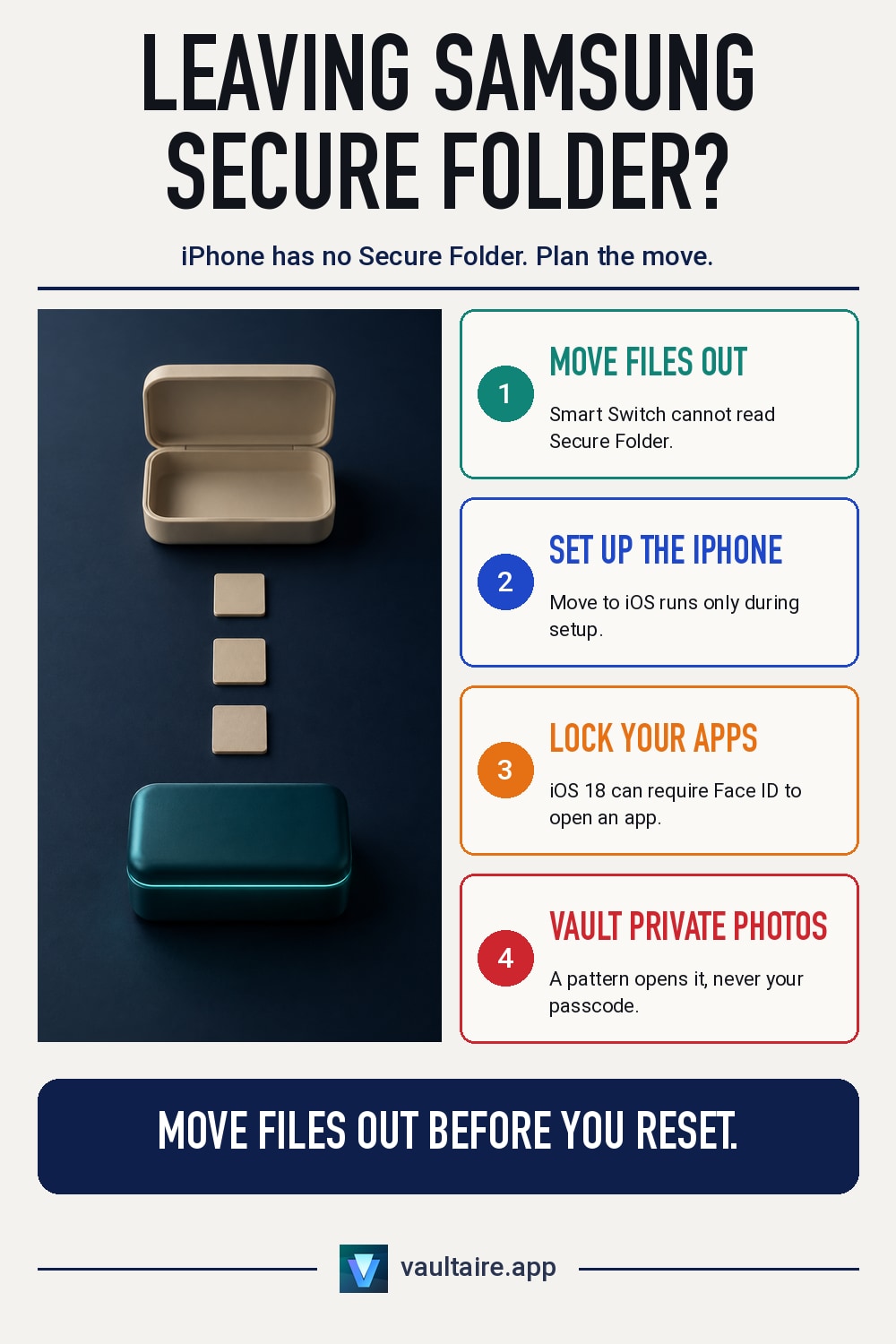
The iPhone has no feature that matches Samsung Secure Folder. Secure Folder is a separate space built on Samsung Knox. It can hold second copies of apps, along with photos, files and contacts, and it locks with its own pattern, PIN or password. The iPhone splits these jobs across several features: the Hidden album and locked apps open with Face ID or your passcode, notes can be locked one at a time, and private photos and files can go into a vault app. Move your files out of Secure Folder before you switch, because Smart Switch can't read the files inside it.
How Samsung Secure Folder and the iPhone differ
Samsung Secure Folder is built on Samsung Knox and gives you a separate private space on the phone. You can move photos, videos, files, contacts and notes into it, and you can install second copies of apps there, such as a messaging app signed in to a different account. Secure Folder has its own lock: a pattern, PIN or password, with fingerprint as an option. Once it is locked, the apps and files inside don't show up in your regular media viewer or app list. Many people stay with Samsung for exactly this reason: one lock keeps a whole set of private data together, and that lock uses a different code from the one that unlocks the phone.
The iPhone has no single space like that. iOS locks each kind of data on its own: photos can go into the Hidden album, apps can be locked or hidden with Face ID, and notes can be locked one at a time. Most of these open with Face ID, Touch ID or your passcode, so anyone who knows your passcode can open them too. Another clear difference is dual apps: the iPhone can't install a second copy of the same app on one phone. If you used a second copy in Secure Folder to sign in to another account, on iPhone you'll need the app's own account switching, or you'll have to sign out and back in. For an overview of the ways to store things privately on iPhone, see how to create a secret folder on iPhone and how to password protect a folder on iPhone.
Move your files out of Secure Folder before you switch
This is the step people miss most often when they switch. Samsung's Smart Switch help is clear on it: Secure Folder is a separate storage space, and Smart Switch can't access or read the files inside it. Apple's Move to iOS app transfers regular data such as contacts, message history, camera photos and videos, photo albums, and files and folders, and Secure Folder is a separate space. So before you reset your old phone or hand it over, open Secure Folder, select the files you want to keep, tap ⋮ in the top-right corner, then choose the option to move them out of Secure Folder. Photos and videos you move out go back to your regular media viewer.
Move to iOS only works during the iPhone's initial setup. If your iPhone is already set up, Apple says to erase it and set it up again, or to move your data manually. So the order matters: first move the files you want to keep out of Secure Folder on your Samsung phone, then start setting up the new iPhone. Before you move anything, list the files you don't want anyone else to see. As soon as they reach the iPhone, put them somewhere locked. Don't leave private photos sitting in your regular Photos library for long, and make sure no copies remain on the old phone before you reset it.
What replaces each Secure Folder feature on iPhone
Private photos and videos: the Photos app has a Hidden album, and since iOS 16 opening it requires Face ID, Touch ID or your passcode. It only hides photos from the main view of your library. They stay in the same library, and anyone who knows your passcode can still see them. For how the two compare, see Hidden album vs a photo vault. Apps: since iOS 18, you can touch and hold an app icon and choose Require Face ID, or hide the app. Hidden apps move to a Hidden folder at the bottom of the App Library, and opening that folder also requires Face ID, Touch ID or your passcode. For the steps, see how to lock apps with Face ID on iPhone.
Notes: the Notes app can lock individual notes, which open with your passcode or a separate password you set. For a detailed comparison, see iPhone Notes lock vs a vault app. Files: the iPhone's Files app can't lock folders on its own. The workable options are collected in how to lock the Files app on iPhone. Second copies of apps: the iPhone has no replacement, so you can only use an app's own multi-account feature. Overall, most built-in iPhone features treat your passcode as the final lock. If you want what Samsung Secure Folder gives you, a second lock separate from your phone's passcode, you need a vault app that doesn't open with your passcode.
What Vaultaire can and can't replace
Vaultaire is a vault app for iPhone that holds photos, videos and files. It opens only with a pattern you draw on a 5×5 grid, the pattern must connect at least 6 dots, and it never accepts Face ID, Touch ID or your passcode. This is the closest match to Samsung Secure Folder's own separate lock: even someone who knows your passcode can't open the vault. Files are encrypted with AES-256-GCM using a random key, and your pattern unlocks that key. If you take a screenshot or screen recording while the vault is open, the screen comes out blank, and a screenshot locks the vault. Photos you take with the in-app camera go straight into the vault and never enter your Photos library. Pattern locks and Face ID each involve tradeoffs. See pattern lock vs PIN vs Face ID.
Encrypted iCloud backup is on by default. Apple stores the ciphertext and doesn't hold the key, and you don't need to create a Vaultaire account. Different patterns open different vaults, and the app never shows a list of vaults. The free plan lets you create 3 vaults, with a combined total of 100 photos and 10 videos across all vaults. To be clear about what Vaultaire can't do: it can't install second copies of apps, and it can't lock other apps or contacts. When you switch from Samsung, first transfer the photos you moved out of Secure Folder to your iPhone, then follow how to move photos to a vault app to put them in the vault. Finally, delete the originals from your Photos library and empty Recently Deleted.
Related guides
- How to create a secret folder on iPhone
- How to password protect a folder on iPhone
- Hidden album vs photo vault: which protects your iPhone photos
- How to lock apps with Face ID on iPhone
Sources
FAQ
Does the iPhone have a Secure Folder?
No. The iPhone has no separate encrypted space like Samsung Secure Folder that holds apps, photos, files and contacts together. iOS locks photos, apps and notes separately, and most of them open with Face ID, Touch ID or your passcode.
Does Smart Switch transfer files in Secure Folder?
No. Samsung says Secure Folder is a separate storage space, and Smart Switch can't access or read the files inside it. Before you switch, select the files in Secure Folder, move them out of Secure Folder, and then transfer them.
Can the iPhone run dual apps like Secure Folder?
No. The iPhone can't install a second copy of the same app on one phone. Some apps have built-in account switching that can stand in for dual apps. For apps that don't, you have to sign out and sign in with the other account.
Is there a private space on iPhone that doesn't open with the passcode?
Not among the built-in features. The Hidden album and locked apps both open with your passcode. A vault app can fill that gap. Vaultaire, for example, opens only with a pattern and never accepts Face ID, Touch ID or your passcode.