How to Lock the Files App on iPhone
iPhone will put the Files app behind Face ID in a single long press, and most people set it up in under a minute. The useful part of this guide is the next question: which of your documents that lock actually covers, and which ones it never touches.
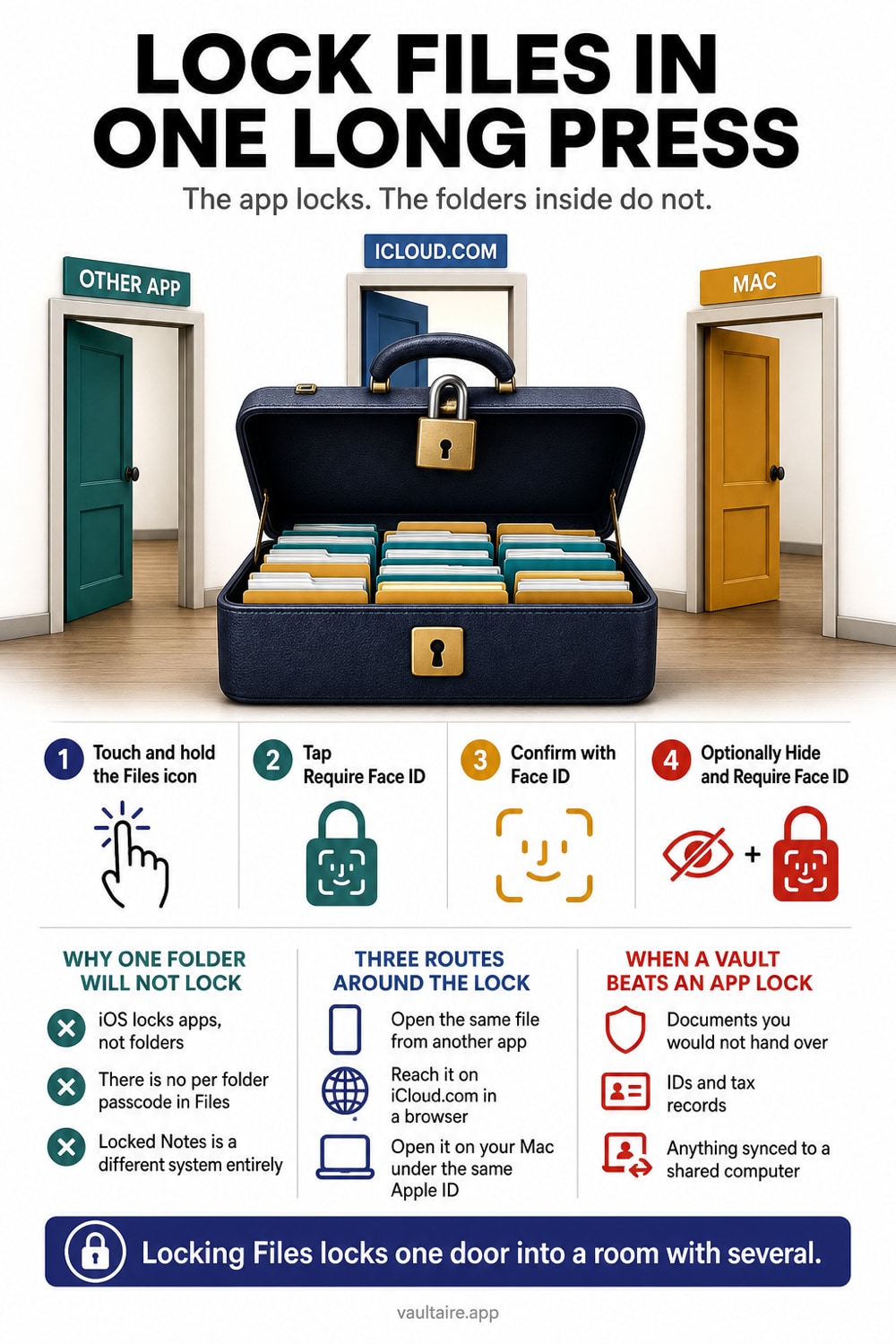
Touch and hold the Files app icon on the Home Screen, tap Require Face ID (or Require Touch ID, or Require Passcode), then authenticate to confirm. Files now asks for your face or your passcode before it shows a single folder. The lock is on the app, not on the documents: you cannot lock one folder and leave the rest open, you cannot hide Files the way you can hide an App Store app, and the same files remain reachable through other apps, through the Share Sheet, and through iCloud Drive on a Mac or a browser.
Lock the Files app in one long press
Touch and hold the Files icon on your Home Screen until the Quick Actions menu opens, then tap Require Face ID. iPhone asks you to authenticate before it applies the change, and from that point on Files asks for your face, your fingerprint, or your passcode before it renders a single folder name. The setting lives on the icon, so there is nothing to configure inside the app, no separate password to invent, and nothing to remember beyond the passcode you already use.
Two side effects come with the lock and both work in your favour. The contents of a locked app stop surfacing in Spotlight search and in system suggestions, so a document title no longer appears when someone types a word into the search field on your Home Screen. And if you have Stolen Device Protection turned on, the passcode fallback is removed while you are away from a familiar location, which means someone who watched you type your passcode in a cafe still cannot open Files. Undoing the lock uses the same menu and also requires authentication.
Why a single folder will not lock
The most common follow up question has a short answer: Apple does not let you lock an individual folder inside Files. There is no Lock entry on a folder, no per folder password, and no way to leave your shared project folder open while sealing the one holding scanned IDs. The protection is all or nothing at the app level, which is fine when everything in Files is private and awkward when you hand your phone to a colleague who needs one shared PDF and now has to be walked past a Face ID prompt to get it.
Hiding the app is not an escape route either. iOS lets you move an app into the locked Hidden folder in App Library, but that option is reserved for apps you downloaded from the App Store. Files ships with iOS, so it can be locked and it cannot be hidden: the icon stays visible on the Home Screen or in App Library, and anyone glancing at your phone can still see that a locked Files app exists. If your goal is that nobody knows the documents are there at all, an app lock is the wrong instrument, because it announces itself by design.
Three routes that walk around the lock
The lock guards the Files app, not the files. When another app asks you to attach a document, it opens the system document picker, which reads the same iCloud Drive and On My iPhone storage without ever launching Files and without triggering the Face ID prompt. Anyone holding your unlocked phone can open Mail, tap the attachment button, and browse the same folders you thought were sealed. The Share Sheet behaves the same way in reverse, and Recents in other apps can surface file names you locked away minutes earlier.
The second route is your other devices. iCloud Drive syncs the same documents to Finder on any Mac signed into your Apple Account and to iCloud.com in any browser, and neither one inherits the lock you set on the iPhone icon. The third is a backup: an unencrypted computer backup of the phone contains those documents in readable form. None of this makes the app lock pointless, and it remains a genuinely good defence against the casual scroll through a borrowed phone. It just means the lock is a door on one room, not a safe.
When a vault beats an app lock
Match the tool to the threat. If what you want is that a friend borrowing your phone to look up an address cannot idly tap into Files, turn on Require Face ID and stop there, because it solves that problem cleanly and costs you nothing. If what you are storing is a passport scan, a medical result, a signed contract, or anything you would not want read by someone who reaches your phone, your Mac, or your iCloud account, then a lock that sits on an icon and leaves the underlying files readable everywhere else is not enough on its own.
An encrypted vault moves protection onto stored document contents. Vaultaire uses AES-256-GCM under a random master key, requires no identity account, and does not place vault copies in iCloud Drive or iCloud Photos. Copied, locked app data remains ciphertext without the required key path. Vaultaire's encrypted CloudKit backup is on by default and can be turned off, while iOS and computer device backups remain separate system-controlled copies to review. Free for up to 3 vaults.
Related guides
- How to lock apps on iPhone with Face ID
- How to password protect a folder on iPhone
- Where to store tax documents on iPhone
- Vault app for iPhone: which ones actually encrypt
- How to make a secret folder on iPhone
Sources
Frequently Asked Questions
Can I lock just one folder in the Files app?
No. iOS has no per folder lock and no folder password. Require Face ID applies to the whole Files app, so every folder is either behind the prompt or none of them are. If you need one part of your documents protected separately from the rest, move that set into an encrypted vault app rather than trying to partition Files.
Can I hide the Files app instead of locking it?
No. The Hidden folder in App Library only accepts apps you installed from the App Store, and Files ships with iOS. You can lock it, but the icon stays visible, so anyone looking at your Home Screen or App Library can see that you keep a locked Files app. Hiding the fact that private documents exist takes a different approach.
Does locking Files stop other apps from opening the same documents?
No, and this is the gap most people miss. Other apps reach iCloud Drive and On My iPhone through the system document picker, which never launches Files and never shows the Face ID prompt. Someone with your unlocked phone can attach the same document from inside Mail or Messages without touching the locked app at all.
Does the lock protect my files on iCloud.com or on my Mac?
No. The setting lives on the iPhone app icon and does not travel with the files. Anything in iCloud Drive stays readable in Finder on a Mac signed into the same Apple Account and in a browser at iCloud.com, and an unencrypted computer backup holds the same documents in plain form.