How to Turn Off Shared Library on iPhone
Shared Library was easy to start and is less obvious to stop. Photos you moved into it left your personal library, the Camera may be adding new shots to it, and everyone in it sees the same pictures. There is no single off switch. What you do depends on whether you joined someone else's library or created your own, and on whether you want out completely or only want fewer photos going in. This guide covers each case, what happens to the photos, and who gets a notification.
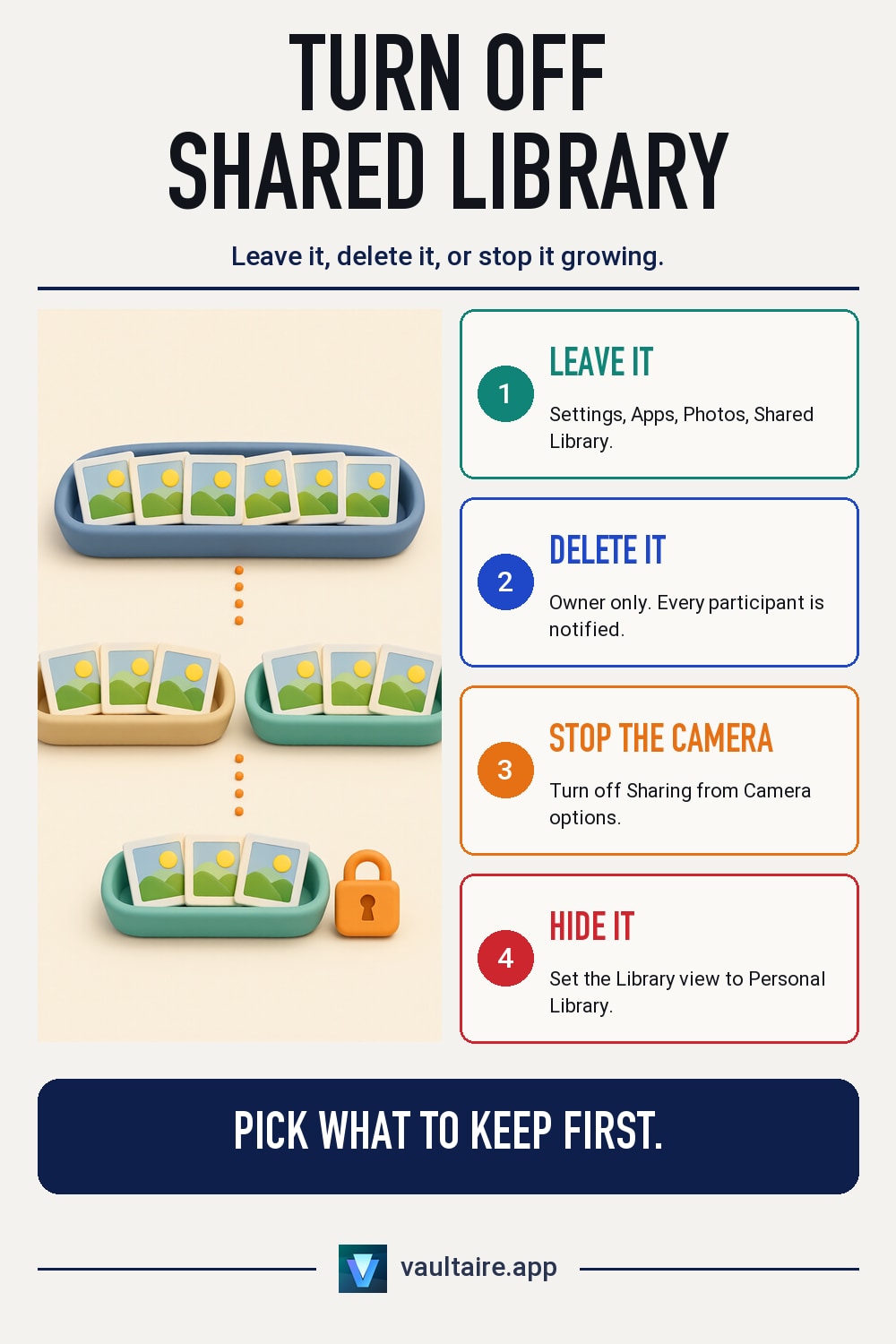
To turn off Shared Library on iPhone, open Settings, tap Apps, tap Photos, then tap Shared Library. If you joined someone else's library, tap Leave Shared Library and choose to copy everything or only what you contributed into your personal library. If you created it, tap Delete Shared Library; every participant gets a notification and keeps a copy. If you only want to stop adding photos, turn off Sharing from Camera instead and leave the library in place.
| What you do | What happens to the photos | Who gets notified |
|---|---|---|
| A participant leaves | The participant copies everything, or only their own contributions, into their personal library. Within 7 days of joining, only their own. | Not documented by Apple. |
| The organizer deletes the library | Participants of more than 7 days get everything copied to their personal library. Newer participants get only their own. | All participants. |
| The organizer removes a participant | The same 7-day rule decides what the removed person keeps. | The removed participant. |
| Sharing from Camera turned off | New photos stay in your personal library. Nothing already shared moves. | Nobody. |
| Library view set to Personal Library | Nothing moves. Only your view changes; others still see the shared library. | Nobody. |
Leave a Shared Library you joined
If someone else created the library, you leave it. Open Settings, tap Apps, tap Photos, then tap Shared Library and choose Leave Shared Library. In iOS 17 or earlier the path is Settings, then Photos. Apple also lists a route inside the Photos app: tap Collections, tap your account in the top-right corner, then tap Manage next to Shared Library. Before you start, make sure you are signed in to iCloud with iCloud Photos on, and stay that way until the process is complete.
Photos then asks what to keep. You can copy everything in the Shared Library into your personal library, or only the content you contributed. There is one limit: if you leave less than 7 days after joining, you can keep only the items you contributed. Tap Leave Shared Library again to confirm. Remember that a photo you moved into the library left your personal library at the time, so if you pick everything, expect your personal library to grow by the size of the whole shared library.
Before you leave or delete, check:
- Your own photos that are still in the shared library are moved back with Move to Personal Library, if you want them out of the others' view.
- You are signed in to iCloud with iCloud Photos on, and you will stay that way until the copy finishes.
- Your iCloud plan has room for the photos you choose to keep, because they now count against your own storage.
- You know whether you joined less than 7 days ago, which limits you to your own contributions.
Delete a Shared Library you created
If you created the library, you cannot leave it; you delete it. The path is the same: Settings, Apps, Photos, Shared Library, then Delete Shared Library. Choose Keep Everything or Keep Only What I Contributed, then tap Delete Shared Library again to confirm. The library's storage counts against your iCloud plan as the organizer, so deleting it is also how you take that space back once the photos are copied out.
Deleting is not quiet. Apple says all participants receive a notification. Anyone who has been in the library for more than seven days gets all of the shared photos and videos copied into their personal library automatically. Anyone who joined less than seven days ago gets only what they contributed. So deleting the library does not take the photos back from people who were in it for more than a week. If you want to drop just one person, remove that participant instead: tap their name in the same Shared Library settings and choose Remove from Shared Library. Apple says the removed person is notified too.
Stop the Camera from saving to the Shared Library
Many people want the library to stop growing, not to disappear. Apple says that by default the Camera saves to your personal library, and a Shared Library button at the top of the Camera screen switches where new photos go. If that button is set to the shared library, tap it to switch back. Two automatic options can also send photos to the library: Share Automatically, which adds photos you take when other participants are nearby, and Share When At Home.
To turn both off, open Photos, tap Collections, tap your account in the top-right corner, tap Shared Library, then tap Sharing from Camera. Turn off Share Automatically and Share When At Home. In the same Shared Library screen you can turn off Shared Library Suggestions, which otherwise sends notifications suggesting photos to add. Nothing already in the library moves when you change these settings. To pull your own photos back, open each one and tap Move to Personal Library.
Keep the library but see only your own photos
If you only want other people's pictures out of your view, you can stay in the library and change the Library filter. Open Photos, make sure Library is selected, tap the button that switches libraries, and choose Personal Library. Your Library then shows only your personal photos. Both Libraries shows everything, and Shared Library shows only the shared content. When you view both, shared items carry a badge in the top-right corner, which also helps you spot your own photos that ended up in the shared library.
The filter changes only what you see. Every participant can still view, edit and delete everything in the shared library, and Apple says shared content is also added to everyone's Memories, Featured Photos and the Photos widget. Your own contributions stay visible to the others until you move them back with Move to Personal Library. If you receive notifications when someone deletes something you added, you can turn those off with Deletion Notifications in the same Shared Library screen, and a deleted item can be moved from Recently Deleted back to your personal library within 30 days.
What the other people see after you leave
Apple documents a notification when the organizer deletes the library and when the organizer removes a participant. It does not document one for a participant who leaves on their own, so we cannot say for certain whether the others are told. Your name will no longer be in the participant list. Leaving is described as copying content into your own library, so the shared photos, including ones you contributed, stay in the shared library for the others (moderate confidence; Apple does not state this outright). If you want your own photos out of their view, move them to your personal library before you leave.
Shared Library and shared albums are separate features. Leaving one does not change the other, and if your problem is a shared album, read whether unsubscribing from a shared album notifies the owner. For the wider question of what a family can see, our guides on how to stop sharing photos with family on iPhone and whether family can see your hidden photos in Shared Library go further. Photos you never want in a shared library are safer outside the Photos app. Vaultaire keeps them encrypted on the device behind its own pattern lock, outside the Photos library entirely. Vaultaire's own iCloud backup stores only encrypted copies; it is on by default and you can turn it off in Settings.
Related guides
- How to Stop Sharing Photos With Family on iPhone
- Can Family See Your Hidden Photos in iCloud Shared Library?
- iCloud Family Sharing Photo Privacy: 5 Settings to Check
- How to Stop iCloud Photos Syncing to Other Devices
Sources
Frequently asked questions
How do I turn off Shared Library on iPhone?
Open Settings, tap Apps, tap Photos, then tap Shared Library. Tap Leave Shared Library if you joined it, or Delete Shared Library if you created it, then choose what to keep and confirm.
Does leaving a Shared Library delete my photos?
No, if you choose to keep them. When you leave, you can copy everything or only what you contributed into your personal library. If you joined less than 7 days ago, you can keep only what you contributed.
Will they know if I leave a Shared Library?
Apple does not document a notification when a participant leaves. Apple does document notifications when the organizer deletes the library and when a participant is removed. Your name will no longer appear in the participant list.
How do I stop my photos going into the Shared Library?
In Photos, tap Collections, tap your account, tap Shared Library, then tap Sharing from Camera and turn off Share Automatically and Share When At Home. Also check the Shared Library button in the Camera is set to your personal library.
Can I hide the Shared Library without leaving it?
Yes, from your own view. In Photos, with Library selected, switch to Personal Library. The other participants still see everything in the shared library.