How to Stop Sharing Photos With Family on iPhone: 4 Settings to Turn Off
When you use an iPhone alongside your family, it gets hard to tell how much of your photo library they can see. Family Sharing itself does not share photos, but four other settings in the same household can hand them over. This guide shows you how to spot those four and stop the sharing without deleting a single photo.
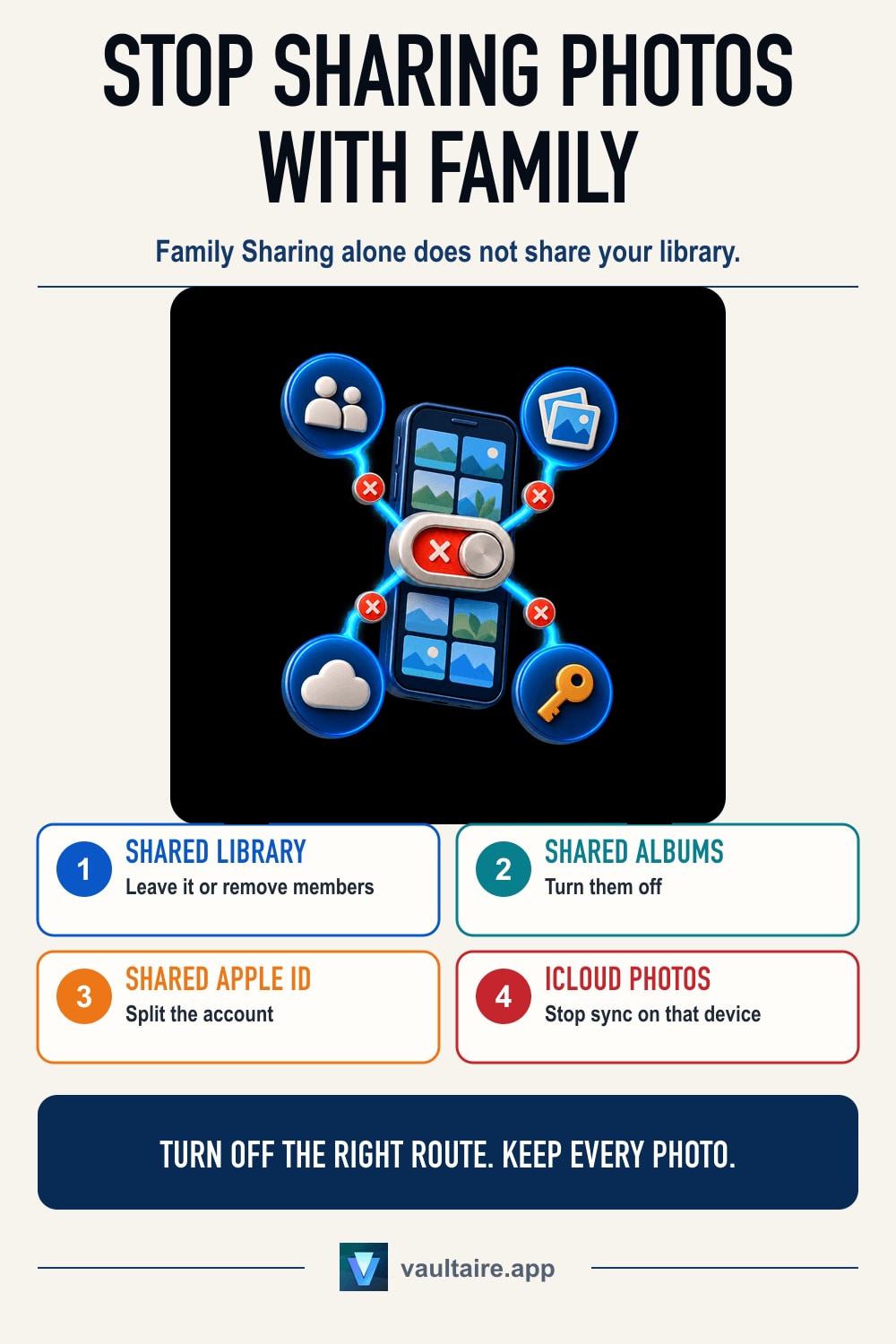
Here is the short answer. Being in a Family Sharing group does not let your family see the photos in your library. Your photos become visible only if you joined an iCloud Shared Photo Library, put them in a Shared Album, signed in with the same Apple ID as a family member, or left iCloud Photos on a family member's device. Turn off whichever one applies in the Settings app and the sharing stops without deleting any photos.
The four settings that hand your photos to your family
Family Sharing shares purchases, subscriptions, an iCloud storage plan and location with your family. Your photo library is not on that list. Turning Family Sharing off often changes nothing about who can see your photos, and photos can be visible even when you do not use Family Sharing at all. If you want to see what is happening first, work through the steps for checking whether Family Sharing exposes your photos to establish where you stand.
Four things actually hand photos over. First, an iCloud Shared Photo Library: the moment you join, the photos it covers belong to every participant. Second, Shared Albums, which only the people you invite can see. Third, a shared Apple ID, which is not sharing at all but one account, so the photo library was always a single library. Fourth, iCloud Photos left on a family member's device, which delivers photos automatically when it is paired with the same Apple ID. Which one applies changes how you stop it and what disappears when you do.
Leave the iCloud Shared Photo Library
In an iCloud Shared Photo Library, every participant can add, edit and delete the same photos. Open the Settings app, tap your name at the top, then iCloud, then Photos, then Shared Library, and you will find the option to leave the shared library. As you leave, you can choose to keep only the photos you contributed, or to copy everything in the library. Choose the first and the photos your family added disappear from your device.
Note that leaving does not remove the photos from your family's side. Anything you put into the shared library is already in their libraries too. If it includes photos you would rather they did not see, move those photos out of the shared library and into your personal library before you leave. Reading how the shared library treats the Hidden album as well will tell you what remains after you leave.
Turn off Shared Albums and split a shared Apple ID
Shared Albums have a narrow reach: only the people you invite can see them. The Settings app has a Shared Albums switch under Photos, and turning it off hides both the albums you created and the ones you joined. To stop a single album, open it under Albums in the Photos app and either remove the subscribers or delete the album. If you only subscribe to an album, unsubscribing sends no notification to the owner. The full list of who sees what is in who can see what in a Shared Album.
If you share one Apple ID with your family, no amount of fiddling with sharing settings will separate the photos. One account means one photo library. The correct fix here is to create an Apple ID for each family member and sign each device back in with its own. Download the photos you need to the device before you switch. If your Apple IDs are already separate and you only want to stop syncing on your own device, how to stop photos syncing between iPhone and iPad fits your goal better.
Keep private photos outside the Photos app
Every setting so far decides who sees the photos inside the Photos app. If one change alters who can see them, one change back makes them visible again. Where family members can pick up your device, the Hidden album is no different. It is just another place inside the Photos app, and Face ID opens it. To check that assumption, read how hidden photos are handled in iCloud.
For photos you truly do not want seen, moving them out of the Photos app is the reliable answer. Vaultaire stores photos encrypted on the device, and only your pattern or recovery phrase unlocks them. They never appear in an iCloud Shared Photo Library or a Shared Album, and iCloud Photos does not sync them. Its own iCloud backup, on by default, holds only encrypted data. Move them across, delete the originals in the Photos app, then empty Recently Deleted, and no sharing setting on your family's side can reach them.
Related guides
- Can your family see your iPhone photos through Family Sharing?
- How to stop photos syncing between iPhone and iPad
- What happens to hidden photos in a shared library
- iCloud Shared Album privacy
Sources
Frequently asked questions
Can my family see my photos if I am in a Family Sharing group?
No. Family Sharing shares purchases, subscriptions, an iCloud storage plan and location. The photos in your library are not included. If your family can see your photos, the cause is an iCloud Shared Photo Library, a Shared Album, a shared Apple ID, or iCloud Photos on their device.
Do my photos disappear if I leave an iCloud Shared Photo Library?
On your own device that depends on the choice you make as you leave. Keep only the photos you contributed and the ones your family added disappear from the device. Nothing disappears on their side. Photos you put into the shared library in the past stay in their libraries.
Will turning off iCloud Photos hide my photos from my family?
If you share an Apple ID, it only stops new photos reaching the device you turned it off on, and everything already in iCloud stays visible on their devices. If your Apple IDs are separate and you are not in a Shared Photo Library, iCloud Photos was never showing your photos to them.
Can I stop the sharing without my family noticing?
Unsubscribing from a Shared Album and turning off iCloud Photos send no notification. Leaving an iCloud Shared Photo Library sends none either, but your name disappears from the participant list, so they will see it if they look. Deleting a Shared Album removes it from their devices, so that they will notice.