How to Turn Off WhatsApp Auto-Download on iPhone
Family, school and work groups send dozens of photos a day, and WhatsApp downloads every one of them to your iPhone without asking. They eat into your data plan, fill your storage and, depending on another setting, pile up in your camera roll. This guide shows where to turn off auto-download, what each choice changes, and the second switch you should not forget.
Short answer
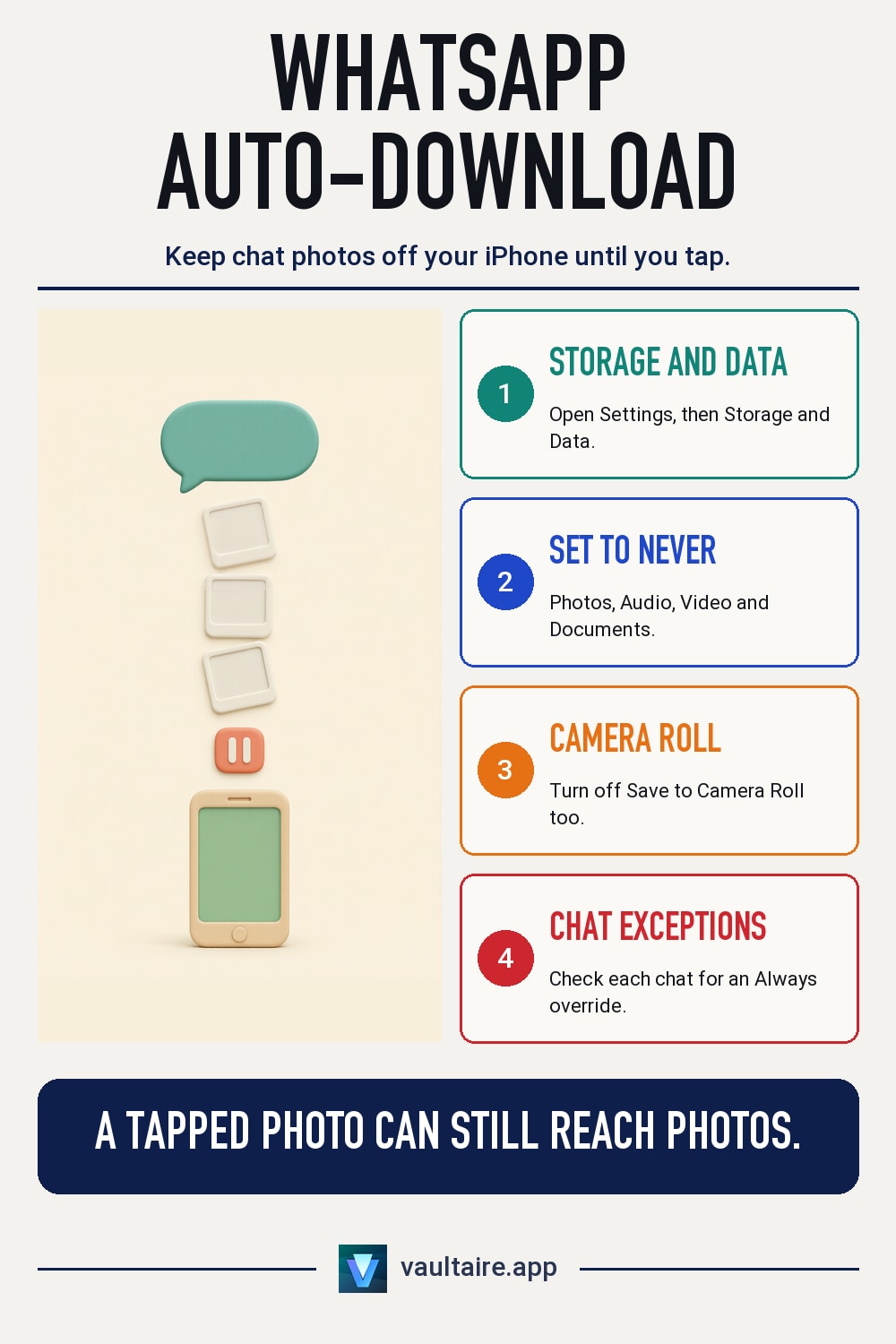
In WhatsApp on iPhone, open Settings, then Storage and Data, tap Photos under Media Auto-Download and choose Never, then do the same for Videos, Audio and Documents. To keep the photos you open later out of the Photos app, also turn off Save to Camera Roll in Settings, then Chats.
Where to find auto-download on iPhone
Open WhatsApp and tap the Settings tab at the bottom of the screen. In recent versions this tab is called You and shows your profile photo. Then tap Storage and Data. The Media Auto-Download section lists four rows: Photos, Audio, Videos and Documents.
Each row offers three choices: Never, Wi-Fi, or Wi-Fi and Cellular. On iPhone you choose by media type, not by network as on Android. If a tutorial mentions one list for mobile data and another for roaming, it describes the Android version.
What the Never setting changes
With Never, a photo you receive appears in the chat as a blurred preview with its file size. The full file downloads only when you tap it. You decide which photos from a group take up space, and nothing uses cellular data unless you tap.
Wi-Fi is the most common compromise: photos download at home, but not when you are out. Set Videos to Never first, because a single video often weighs more than dozens of photos. Leave Audio on Wi-Fi or higher if you listen to a lot of voice messages, since they are small.
Why a photo can still end up in the Photos app
Auto-download and saving to the camera roll are two separate settings. The first decides when WhatsApp fetches the file. The second, Save to Camera Roll, decides whether that file is also copied to the iPhone Photos app. If the second switch stays on, every photo you tap to download is copied into your photo library.
To keep WhatsApp photos out of your camera roll, open Settings, then Chats, and turn off Save to Camera Roll. A chat can also have its own exception: tap the contact or group name at the top of the conversation and check its Save to Camera Roll row. Our guide on WhatsApp photos in the camera roll covers these exceptions in detail.
Free up the space taken by media already downloaded
Turning off auto-download does not touch files that are already on your phone. In Storage and Data, tap Manage Storage: WhatsApp lists files larger than 5 MB and ranks chats by the space they use. Open a group, select the media and delete it to get space back.
Deleting media in WhatsApp does not erase the copy already saved in the Photos app. That copy stays in your photo library, and in iCloud Photos if it is turned on, until you delete it there too. For the few photos you want to keep away from prying eyes, open them in WhatsApp, tap Share and choose Vaultaire: the app encrypts each file with AES-256-GCM and opens with a pattern.
WhatsApp settings compared
| Setting | What it stops | What it does not stop | Where to find it |
|---|---|---|---|
| Auto-download set to Never | Downloading received media until you tap it | The copy in Photos of a photo you tap | Settings, Storage and Data |
| Save to Camera Roll turned off | Copying WhatsApp media to the Photos app | The download and the space used inside WhatsApp | Settings, Chats |
| Manage Storage | The space taken by media already downloaded, once deleted | Copies already saved in the Photos app | Settings, Storage and Data |
| Share to Vaultaire | Access to the kept copy without the pattern, through AES-256-GCM encryption | The original photo in the chat, until you delete it | Photo opened in WhatsApp, then Share |
Related guides
- Stop WhatsApp photos from saving to your camera roll
- How photo storage works on iPhone
- Hide Shared with You photos on iPhone
- Recently Deleted and the privacy of your photos
Sources
Frequently asked questions
Do I lose photos if I set auto-download to Never?
No. Each photo stays available in the chat as a blurred preview, and you only need to tap it to download it. A very old file may no longer be available, though, if the sender has deleted it in the meantime.
Can I turn off auto-download for just one group?
On iPhone, auto-download applies to all chats at once. What you can set per chat is Save to Camera Roll: open the group info and choose Never so its photos do not end up in the Photos app.
Why are WhatsApp photos still in my camera roll?
Because Save to Camera Roll is still on, either globally or for that chat. Auto-download only decides when the file is fetched. Turn off Save to Camera Roll in Settings, then Chats, and check the group exceptions.
Does the Never setting really cut my data use?
Yes, for media. Received photos, and videos above all, no longer use cellular data until you open them. Text messages, calls and blurred previews still use a little data.