How to Show a Hidden Person Again in People & Pets on iPhone
Sometimes you remove a person from People & Pets and then want them back. The Photos app has no button called Unhide, so many people keep searching for the right menu without finding it. The short answer is that a hidden person is not deleted. The photos and the face recognition data both stay on the iPhone, and once you know which action you took, bringing the tile back takes less than a minute.
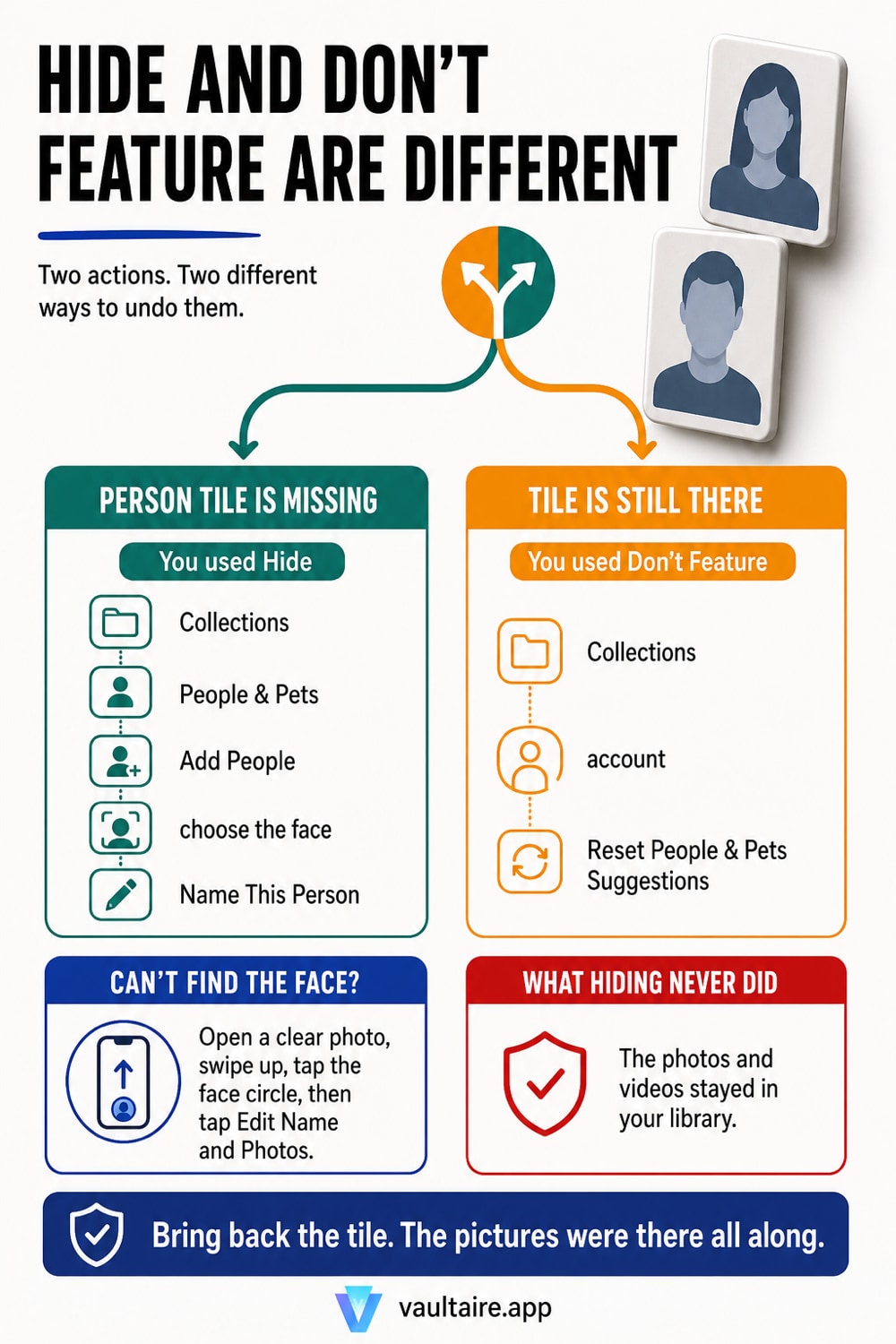
To bring back a hidden person, use Add People at the bottom of the People & Pets collection. Open the Photos app, tap Collections, then tap People & Pets, scroll all the way down, and tap Add People. This shows every face that is not currently in the collection. Tap the person you want, give them a name, and the tile returns to the list. Many people get stuck here because the Photos app has two actions with similar names. Hide [name], which appears when you touch and hold the key photo, only removes the tile from the collection, and you undo it with Add People. Don't Feature [name], in the same menu, stops that person from appearing in memories, featured photos, and the Home Screen Photos widget, and you undo it by tapping your account in the top right corner of the Collections screen and tapping Reset People & Pets Suggestions. Neither action deletes a single photo. If iCloud Photos is on, the result also reaches your iPad and Mac. And keep in mind that hiding a person does not remove the photos of that person from your library or from search results. If there is a photo you do not want someone else to see, you need to move the photo itself somewhere else, not just hide the tile.
Hide and Don't Feature are different actions
Open the Photos app, tap Collections, then tap People & Pets, and touch and hold a person's key photo to bring up a short menu. Hide [name] and Don't Feature [name] sit right next to each other there, and the names are close enough to mix up. The first action only removes the tile from the collection. Not one photo moves, and the Photos app keeps recognizing that face. The second action lowers how often that person shows up, so they stop appearing in memories, featured photos, and the Home Screen Photos widget. Neither one is a deletion.
Since you undo them in different places, work out which one you tapped first. If the tile is gone from People & Pets, you used Hide. If the tile is still there but the person is missing from memories, you used Don't Feature. If you tapped both in a row, you need to undo both. Most people who feel like the fix "does not work" have only undone one of the two. The steps to hide a person from the People album cover the same screen from the hiding side.
Bring a hidden person back to People & Pets
Start with Add People. In the Photos app, tap Collections, then tap People & Pets, and scroll to the very bottom to find Add People. Apple describes this as the entry point for seeing faces that are not yet in the collection. Tapping it opens a grid of faces. Tap the person you want to bring back, tap Name This Person, enter a name, and confirm. A person you name is added to the People & Pets collection automatically, so that alone brings the tile back. If the name is already in your contacts, a suggestion appears below Results as you type, and you can just pick it.
If the person is not in the grid, work from a photo instead. Open a photo where their face is clear and facing the camera, swipe up to see the details, and the people in that photo appear as circles in the bottom left corner. Tap the circle and give them a name, and they are added to the collection the same way. Undoing Don't Feature takes a different path. Tap your account in the top right corner of the Collections screen, then tap Reset People & Pets Suggestions. This does not bring back one specific person, it restores everyone you had reduced at once.
When the tile will not come back, and what hiding does not erase
The most common reason a tile will not come back is that the Photos app cannot recognize enough of that face. Groups form from photos where the facial features are clear, so a person who only appears in profile, backlit, wearing a mask, or far away will not show up in the grid. Find a few photos where they face the camera directly and name them from there. The second reason is that iCloud Photos is still syncing. Apple states that when you use iCloud Photos, People & Pets stays up to date on all your devices, but it takes time to catch up. The third reason is that you actually did something different. If, like in the steps to check when hidden photos disappear, you moved the photo itself into the Hidden album, that photo also drops out of the face group.
It is worth checking what hiding does not erase. When you hide a person, the photos of that person stay in your library. They still turn up if you search a name or a place, and any copy already in a shared album stays on the other person's device. Unless you also tapped Don't Feature, that person still shows up in memories and featured photos. How to keep private photos out of Memories covers closing that door on its own. In short, Hide is not a way to protect photos from someone else's eyes, it is a way to tidy up your own screen.
When you want to hide the photo itself, not just the face tile
If the real reason you hid someone was that you do not want anyone to see photos of them, whether the tile comes back is beside the point. Anyone who can unlock your iPhone can open the Photos app and see everything in it. You can lock the Hidden album with Face ID, but Face ID falls back to your device passcode, so it is no barrier to someone who watches you type that passcode every day. The difference between the Hidden album and a photo vault app lines up that boundary in detail.
Move the photos you truly do not want in Photos to a vault with a credential separate from the device passcode. Vaultaire encrypts file contents under a random master key and derives the vault key from a drawn pattern. It requires no identity account, and local vault use works offline. App analytics and crash diagnostics are enabled by default and can be turned off with “Share errors anonymously” in Settings; iCloud backup, on by default, plus sync or sharing use client-side encrypted CloudKit records. Import the photos, confirm they open inside Vaultaire, then delete the Photos originals and empty Recently Deleted. The encrypted vault copies no longer participate in Photos search, Memories, or face groups.
Related guides
- How to hide a person from the People album
- How to keep private photos out of Memories
- How to fix it when hidden photos disappear
- The difference between the Hidden album and a photo vault app
Sources
Frequently asked questions
Does hiding a person in People & Pets also delete their photos?
No. Hide [name] only removes the tile from the collection, the photos and videos themselves stay in your library exactly as they were. The Photos app also keeps the face recognition data, so choosing that person again in Add People brings the tile back. If you feel like the photo itself is missing, you may have hidden the photo rather than the person. In that case, open the Hidden album, select the photo, and tap Unhide.
If I bring back a hidden person, does it also apply on my iPad and Mac?
Yes, as long as you use iCloud Photos. Apple states that when you use iCloud Photos, People & Pets stays up to date on all your devices. The update is not instant, so leave iPhone connected to power and Wi-Fi for a while, then reopen the Photos app on your iPad or Mac. A device with iCloud Photos turned off groups faces only on its own, so it does not receive this sync.
Why doesn't the person I want appear in Add People?
Because the Photos app has not recognized that face as a single group yet. A person who only appears in profile, backlit, wearing a mask, or far away does not form a group and will not show up in the grid. Open a few photos where they face the camera clearly, swipe up, and name them from the circle in the bottom left corner. This also happens right after you import photos, before analysis has finished. Leaving the iPhone charging and locked for a while lets the analysis catch up.
Can I undo Don't Feature for just one person?
No, there is no option that undoes just one person. What Apple provides is tapping your account in the top right corner of the Collections screen and tapping Reset People & Pets Suggestions, which restores everyone you had reduced at once. Keep in mind this also resets what you set for other people. The reliable approach is to reset first, then set Don't Feature again only for the people you still want to keep out.