What Is in an iPhone Backup? Finding the Invisible Ones
Most iPhone owners have never seen their own backup. It runs at night while the phone charges, sends no notifications, and does not open like a normal folder. That is why people call it invisible. Yet it can hold almost everything on your phone: photos, messages, app data. Somewhere in iCloud there may be backups of a phone you sold two years ago, and an old laptop may still hold a backup made through iTunes. This guide covers which backups your iPhone makes, what goes into them and what stays out, how to find forgotten backups, and how to delete the ones you don't need.
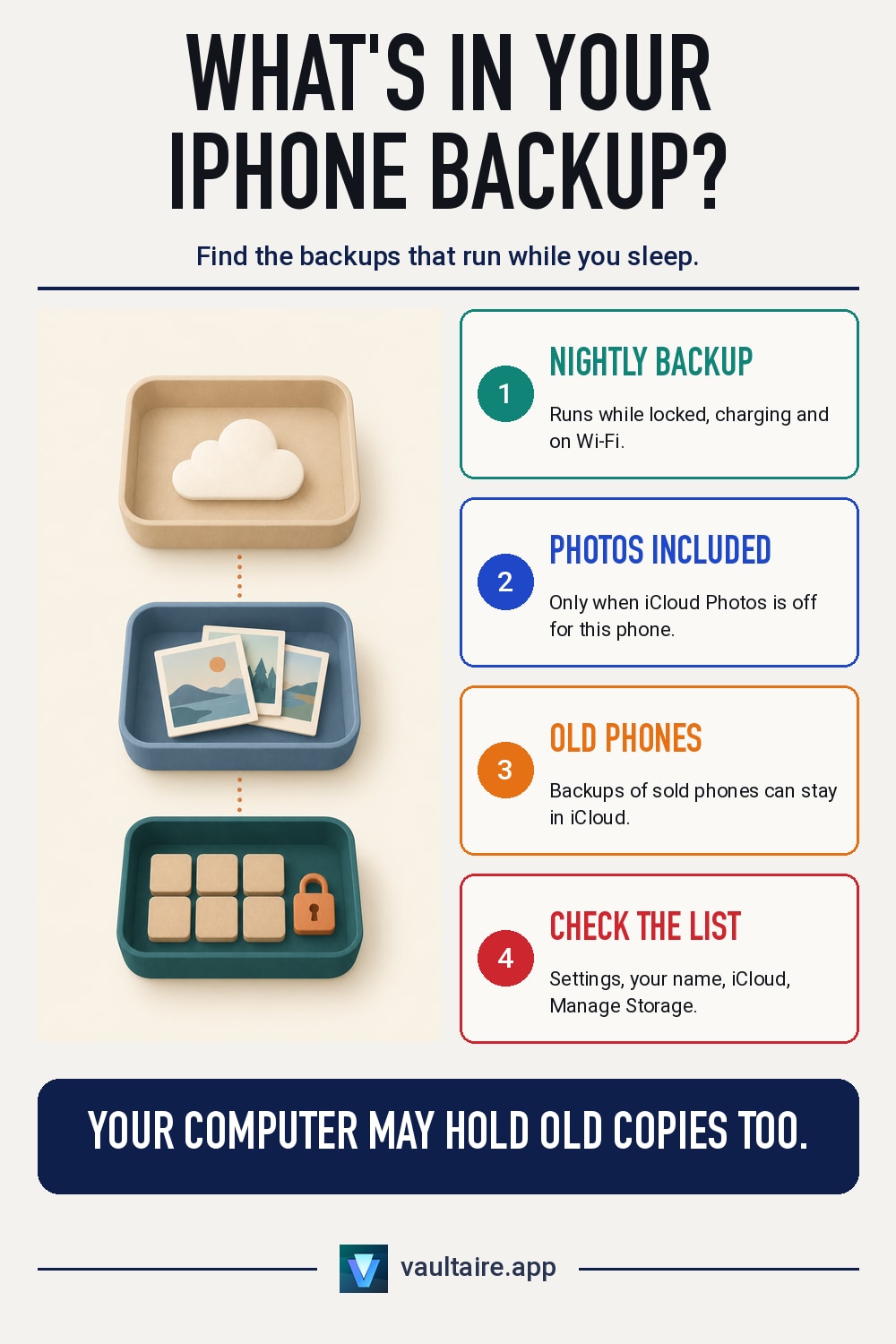
"Invisible" iPhone backups are not a separate iOS feature. They are ordinary backups that you never see running. iCloud Backup runs automatically when your phone is locked, connected to power, and on Wi-Fi. It includes app data, settings, your Home Screen, messages if Messages in iCloud is off, and photos if iCloud Photos is off. iCloud also keeps backups of your old devices, and computers keep backups made through Finder or iTunes. To find your iCloud backups, go to Settings, tap your name, then iCloud, Manage Storage, Backups.
Why iPhone backups are called invisible
If iCloud Backup is on, your iPhone backs itself up. Apple says iCloud backs up over Wi-Fi when the device is on, locked, and connected to power. For most people, that means overnight on the charger. The phone asks nothing and never shows what it sent to the cloud. The only trace in Settings is a line with the date and time of the last successful backup. So many people believe they have no backups at all, even though their phone has made one every night for years.
The second reason is that you cannot open a backup. Neither the Files app nor iCloud.com has a folder where you can browse its contents. Apple shows only the device, the date, the size, and the list of apps whose data goes into the backup. The only way to see the files themselves is to restore the backup to an iPhone. That makes a backup look like a harmless line in your storage list, when it is really a snapshot of your whole phone on a given day. That is why it helps to know what goes into it and what does not.
What goes into an iCloud backup, and what doesn't
According to Apple, an iCloud backup contains the information and settings stored on the device itself that do not sync with iCloud. That means app data, iPhone settings, your Home Screen and app layout, purchased ringtones, your Visual Voicemail password, and your Apple Watch backup if the watch is paired with the phone. It also includes iMessage, SMS, and MMS messages if Messages in iCloud is off, and your photos and videos if iCloud Photos is off. In that second case, your entire library goes into the backup, including the Hidden album, as our guide on hidden photos in iPhone backups explains in detail.
What the backup leaves out is everything that already syncs with iCloud. If iCloud Photos is on, your photos live in your iCloud Photos library, not in the backup. The same goes for Messages in iCloud, notes, contacts, calendars, and files in iCloud Drive. This matters for privacy: turning off backups does not remove that data from the cloud, because it stays in its own services. And if you turned off iCloud Photos to keep your pictures out of the cloud but left backups on, your photos still end up in iCloud, just inside the backup.
Backups you forgot about: old phones and computers
A phone's backup does not disappear when you switch phones. If you moved to a new iPhone, sold the old one, or lost it, its last backup may still take up space in your iCloud. Apple says that after you turn off backups for a device, its backups stay in iCloud for 180 days and are then deleted. But if you never turned anything off and simply stopped using the phone, do not count on automatic cleanup. Open the list of backups and check for yourself: it often shows two or three devices the owner forgot about long ago.
The second forgotten backup lives on a computer. If you ever connected your iPhone to a Mac through Finder, or to a Windows PC through iTunes, and clicked Back Up Now, a full snapshot of your phone is still on that drive. Without encryption, that backup holds your photos and messages. With encryption turned on, it also includes saved passwords, Wi-Fi settings, website history, Health data, and call history. If the computer is shared, belongs to your work, or has been in for repair, assume it holds a backup of your phone. We covered how encryption works for these backups in our guide on iPhone backup encryption.
How to find and delete backups you don't need
Open Settings, tap your name, then tap iCloud, Manage Storage, and Backups. In some versions of iOS the option is called Manage Account Storage. Tap a device to see the date of its last backup, its size, and the list of apps with how much data each one stores. Here you can turn off backups for a single app if its data should stay out of the backup. To delete an old phone's backup, tap Turn Off and Delete from iCloud. On a Mac, open Finder, select your iPhone in the sidebar, and click Manage Backups. In iTunes on Windows, you will find the same list in the app's preferences.
Also check apps that have their own cloud storage. Messaging apps and vault apps, for example, may keep their own backup in iCloud, and it follows its own rules. Vaultaire makes an encrypted backup in your private iCloud database: it is on by default, updates every 24 hours, and uses Wi-Fi only by default. Files are encrypted on your phone, and Apple stores only encrypted data and holds no keys. But someone who gets access to that data can try to guess your pattern offline, so choose a long pattern. You can read more about where these apps store photos in our guide on how vault apps back up to iCloud.
Related guides
- Is There a Hidden Backup on iPhone? Where Hidden Photos Go
- iPhone Photo Backup Encryption: What Is Actually Protected
- Do Photo Vault Apps Back Up to iCloud? Where Vault Photos Live
- Do Hidden Photos Transfer to a New iPhone?
Sources
Frequently asked questions
Can I see what is inside my iCloud backup?
No. Apple shows only the device, the date, the backup size, and the list of apps whose data it includes. You cannot open individual files on your iPhone or on iCloud.com. To see the contents, you have to restore the backup to a device.
Do hidden photos go into the backup?
If iCloud Photos is off, yes: your entire library goes into the backup, including the Hidden album. If iCloud Photos is on, your photos live in your iCloud Photos library and are not part of the backup.
Do backups of old phones delete themselves?
Apple says that after you turn off backups for a device, its backups stay in iCloud for 180 days and are then deleted. If you sold or lost the phone, don't wait: open Manage Storage, then Backups, and delete its backup yourself.
How does Vaultaire store its backup in iCloud?
Vaultaire makes an encrypted backup in your private iCloud database every 24 hours, over Wi-Fi only by default. Apple stores the encrypted data and holds no keys. You can restore the backup with your pattern or your recovery phrase. Someone with access to that data can try to guess your pattern offline, so a long pattern is safer.