Can't Find Privacy in iPhone Settings? Here's Why
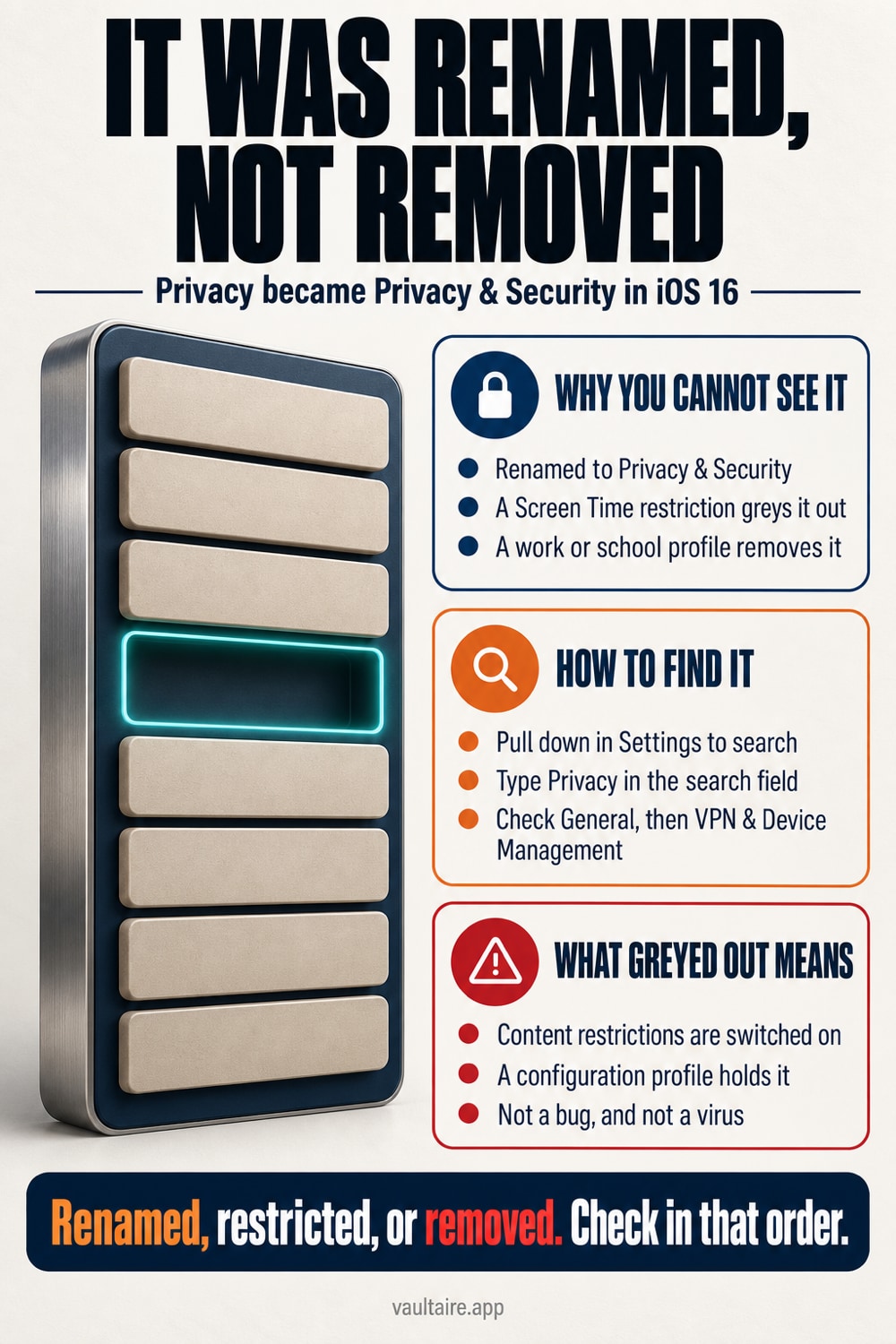
Plenty of people still open Settings, look for Privacy, and can't find it. In most cases the entry hasn't actually vanished. iOS 16 renamed it Privacy & Security and moved it to a new spot. But sometimes it really is unreachable, because of a Screen Time restriction or a work or school configuration profile. Here's where to look, and what's happening when an entry appears greyed out.
Privacy is now called Privacy & Security, and it sits roughly in the middle of Settings, near Screen Time and Face ID & Passcode. The fastest way to find it is to search: open Settings, pull down from the top of the screen to reveal the search bar, type Privacy, and tap through. If it still isn't there, or entries are greyed out when you open it, the cause narrows to three things. First, open Settings, then Screen Time, then Content & Privacy Restrictions, and check whether Location Services or similar entries are set to Don't Allow Changes. Second, open General, then VPN & Device Management, and check for a work or school configuration profile. Third, if the entry opens but the app list inside it is empty, that just means no app has requested that data yet. It isn't a problem.
Privacy Is Now Called Privacy & Security
Since iOS 16, the Privacy entry in Settings has been called Privacy & Security. It sits roughly in the middle of Settings, below Screen Time, in the same group as Face ID & Passcode and Emergency SOS. Look for the blue hand icon. If you're searching from memory inside General or at the very bottom of the screen and coming up empty, that's because both the name and the position changed.
The most reliable way to find it is to search. Open Settings and pull down from the top of the screen to reveal the search bar. Type Privacy into it, and the matching entry appears as a suggestion, even though it's officially named Privacy & Security now; tap it to jump straight to that screen. Nested settings like Location Services and Tracking open the same way. You don't need to remember the new, longer name to find it.
When an Entry Opens But Is Greyed Out
Sometimes Privacy & Security opens fine, but entries inside it, like Location Services or Tracking, are greyed out and can't be tapped. This isn't a bug; it's a sign that Screen Time's Content & Privacy Restrictions are active. Open Settings, then Screen Time, then Content & Privacy Restrictions. That screen lists privacy-related entries, and if any of them is set to Don't Allow Changes, the corresponding entry in the main Settings screen stays locked and greyed out.
Removing the restriction requires your Screen Time passcode. If you're asked for one you don't remember setting, you may have chosen it during setup when switching phones, or you might be using an account under family management. If you've forgotten the passcode, you can reset it with your Apple Account email address and password; without going through that process, the entry stays greyed out no matter what you tap. Steps for reviewing privacy settings in order of impact are covered in a separate guide.
On a Work or School iPhone, Entries Disappear Entirely
On an iPhone issued by an employer or school, an administrator can install a configuration profile that hides specific settings. In this case, the entry doesn't grey out; it disappears from the list entirely. Open Settings, then General, then VPN & Device Management, to see which profiles are installed. If an entry there shows an administrator's name, the iPhone is managed, and the device itself has no say in what gets hidden.
On a managed iPhone, entries such as location sharing, analytics data, and app tracking permission may be locked in place by the administrator. You can sometimes remove the profile yourself, but doing so also removes work email and internal network settings tied to it. If you're unsure, check with your administrator before removing anything. If it's your own iPhone with only an old leftover configuration profile, removing it is fine.
If Nothing Fixes It, and a Way to Protect Privacy That Doesn't Rely on Settings
Sometimes the name and location are both right, no restriction or profile is in place, and the app list on a privacy screen is still empty. This is normal. Only apps that have requested access to photos, the microphone, or similar data appear on that list; if nothing has asked yet, nothing shows up. If the display genuinely looks broken, restart the iPhone and update iOS to the latest version before opening it again. If that still doesn't help, go to Settings, then General, then Transfer or Reset iPhone, then Reset, then Reset Location & Privacy; this clears all permission states and rebuilds the list from scratch.
Worth pausing on one thing here: the privacy screen opens without a passcode. If an iPhone is already unlocked, anyone can open Settings and flip those permissions, and the same is true of the Hidden album in the Photos app. Tidying up privacy settings decides what apps can access; it doesn't protect photos from someone holding your unlocked iPhone. If there are photos or documents you don't want seen, encrypting them on the device and moving them somewhere that needs a separate key to open is the more reliable option.
Related Guides
- Privacy Settings to Review, in Order of Impact
- Which Apps Can See Your Photos
- Give Apps Limited Access to Your Photos
- How to Stop Sending Analytics Data
Sources
Frequently Asked Questions
Why isn't there a Privacy entry in iPhone Settings?
Because iOS 16 renamed it Privacy & Security and moved its position within Settings. The entry itself hasn't been removed. Type Privacy into the search bar at the top of Settings, and it will appear as a suggestion even under its new name. If it still doesn't show up, a configuration profile may be hiding it.
Entries under Privacy & Security are greyed out and I can't tap them.
Screen Time's Content & Privacy Restrictions is set to Don't Allow Changes. Open Settings, then Screen Time, then Content & Privacy Restrictions, and switch the relevant entry back to Allow Changes. This requires your Screen Time passcode. Until you know that passcode, no amount of tapping in the main Settings screen will remove the grey-out.
What becomes invisible on a company-issued iPhone?
Whatever the administrator specifies through a configuration profile. Location sharing, analytics data, and app tracking permission are common targets, and hidden entries disappear from the list rather than turning grey. Open Settings, then General, then VPN & Device Management, to see which administrator's profile is installed.
What happens when I run Reset Location & Privacy?
Every permission you've granted to apps is revoked and reset to its default state. For photos, contacts, the microphone, and location alike, you'll be asked to grant permission again the next time you open that app. Your photos themselves are not deleted. This is useful if you feel you've granted too much access, but if you use a maps or ride-hailing app every day, remember you'll have to grant permission again.