How to Protect Your Photos Before an iPhone Repair
The shop is not asking to see your photos. It is asking for the passcode, because a screen swap or a battery swap has to be tested on a working phone, and testing means unlocking it. That one number is the only lock between a stranger at a counter and your Hidden album, your Recently Deleted folder and every app you locked with Face ID. You cannot solve that by trusting the technician more. You solve it by changing what the passcode is able to open before you hand the phone over, and that takes about twenty minutes.
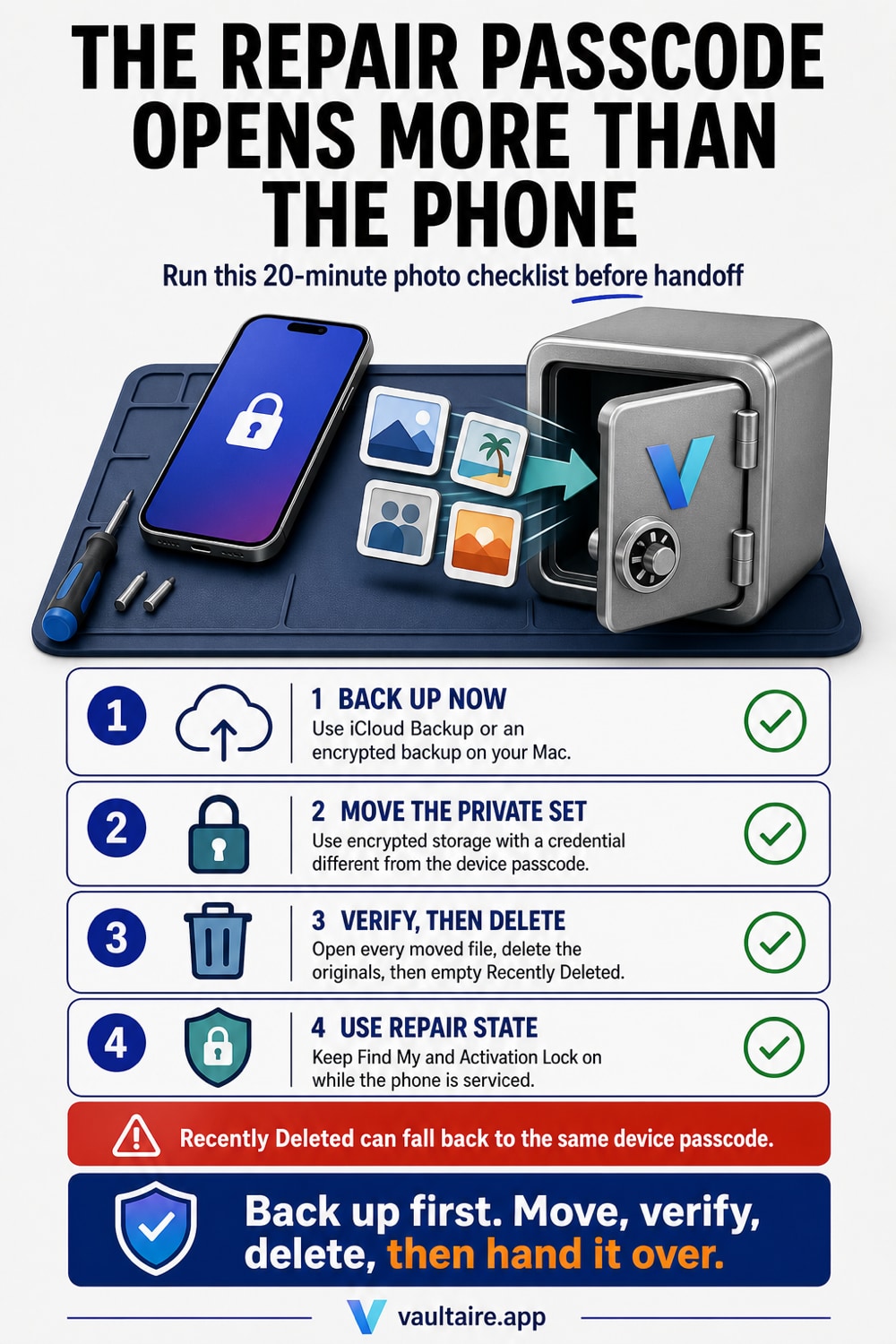
Do three things, in this order. Back the phone up, move the private photos off the device into an encrypted app with its own lock, then empty Recently Deleted. Apple is direct about the passcode itself: never give your Apple Account password, device passcode or account security details to anyone, and neither Apple nor an Apple Authorized Service Provider will ask for them, although some software support does ask you to type the passcode in yourself. Independent shops are a different story. Many ask for it as a condition of the job, because a screen, a battery or a Face ID module cannot be signed off without unlocking the phone and running a test. If you say yes, be clear about what yes covers. Your camera roll opens with one tap. The Hidden album sits in Utilities behind a Face ID prompt that falls back to the same passcode. Recently Deleted holds 30 days of pictures you thought were gone, behind that same fallback. Apps you locked or hid unlock with it too. It is one lock, not four. Repair State, added in iOS 17.5, is worth turning on, and it solves theft rather than snooping: it keeps Find My and Activation Lock active while the phone is in for service so nobody else can claim it, and it hides not one photo. That gap is the one a vault closes. Move the pictures you would not want scrolled into a separate encrypted app, delete the originals, empty Recently Deleted, and the passcode on that repair ticket stops being a key to anything private.
When the passcode actually leaves your hands
Not every repair needs it. A back glass replacement or a phone that will not power on at all can often be done with the device locked the whole time. A screen, a battery, a camera, a charging port or a Face ID module is different, because the shop has to test the part afterwards, and a locked iPhone cannot be tested. That is where the passcode field on the repair ticket comes from. Ask why it is needed, and if the answer is testing, the answer is honest. It still means somebody who is not you holds the key to the phone for hours, sometimes days.
The risk is rarely a villain. It is a phone sitting unlocked on a bench in a shared workspace, a trainee running a camera test that opens Photos, a swipe that goes one picture too far. This is the same handoff problem as selling the device, worked through in the private photo cleanup before you sell an iPhone, with one difference that changes the whole plan: you are getting this phone back. You cannot erase it and walk away, so the fix has to leave a working, testable device behind while taking the private half of the library out of reach.
Back up before you move a single photo
Start with the backup, not the sorting. Settings, your name, iCloud, iCloud Backup, Back Up Now. If your library is bigger than your iCloud plan, plug into a Mac, open the iPhone in Finder and back up locally with Encrypt local backup ticked, which is also what makes the backup keep your saved passwords and Health data. The order matters for a plain reason: a repair can end in a restore, a device that stops booting cannot be backed up later, and the copy you make now is the one that still holds every photo you are about to remove from the phone.
Then write the short list. Do not attempt the whole camera roll, because you will run out of patience before you run out of photos. Search Photos for the things that would actually cost you if a stranger saw them: passport and licence shots, a screenshot of a bank transfer, insurance documents, pictures of you or your partner. The Hidden album is not that list and never was, since Hidden was built to reduce clutter rather than to keep secrets. Treat it as one more place to check, not as the inventory.
The twenty minute pass through your library
Import the short list into a vault app with its own lock, open each picture inside the vault to confirm it arrived, then delete the originals from Photos. Now finish the job: Albums tab, scroll to Utilities, Recently Deleted, Select, Delete All. A photo deleted from the library and left in Recently Deleted is still on the phone for 30 days, and it is still reachable with the passcode on the ticket, which is the detail behind who can see your Recently Deleted photos. Emptying it is the step people skip, and it is the step that makes the rest count.
Then close the side doors, because your library is not the only thing that passcode opens. The Face ID lock on the Hidden album falls back to the device passcode, which is the whole point of how easily that Face ID prompt gets past, and the same fallback applies to any app you locked or hid, covered in locking apps with Face ID. Remove Photos widgets from the Lock Screen and the Home Screen as well, since a widget puts pictures on the glass with no unlock at all, and turn AirDrop receiving off in Settings, General, AirDrop so nothing can be pulled off the phone while it is out of your sight.
Hand it over, then clean up when it comes back
Put the iPhone in repair state last. Open Find My, go to Devices, select the iPhone, choose Remove This Device and confirm with your Apple Account password. Find My and Activation Lock stay on through the service visit, so the device cannot be claimed by anyone else, and you avoid the hour long security delay that Stolen Device Protection otherwise imposes on turning Find My off at the counter. Understand the boundary. Repair state is an ownership lock on the hardware. It is not a lock on Photos, and nothing about it changes what the passcode reveals.
Run the return as a checklist. Change the device passcode in Settings, Face ID and Passcode, Change Passcode, because the old one was written on a ticket and typed in front of people. Check which apps still hold photo access. Vaultaire keeps imported copies outside Photos, encrypts them under a random master key, and uses a drawn pattern separate from the phone passcode. That protects a locked vault, but repair staff with control of an unlocked or compromised device remain inside the threat model. If you need a stronger repair boundary, back up, erase all content and settings, hand over an empty phone, and restore it when it returns, as described in wiping an iPhone before you give it up.
Related guides
- Private photo cleanup before you sell an iPhone
- How easily the Hidden album Face ID lock gets past
- Who can see your Recently Deleted photos
- Wiping an iPhone before you give it up
Sources
Frequently Asked Questions
Do repair shops really need my passcode?
For some repairs, yes, and for others no. Any job that ends in a functional test, which covers screens, batteries, cameras, charging ports and Face ID modules, needs the phone unlocked to confirm the new part works. A back glass swap or a board level diagnostic on a phone that will not boot usually does not. Apple states that neither Apple nor an Apple Authorized Service Provider will ask for your device passcode or Apple Account password, though some software support asks you to enter the passcode yourself. An independent shop can and often does ask outright. Ask what the passcode is for, and if the answer is testing, plan around it rather than arguing about it.
Can a repair shop see my Hidden album?
With your passcode, yes. The Hidden album lives in the Utilities section of the Albums tab and is protected by Face ID or Touch ID, and both fall back to the device passcode when the face does not match, which it will not for somebody else. So a technician holding the passcode opens Hidden the same way you do. Recently Deleted sits behind the identical fallback and keeps 30 days of photos. Hiding a picture before a repair moves it about four taps further away from a curious person, which is not protection. Moving it into an app with a separate lock is.
Does Repair State stop anyone from looking at my photos?
No. Repair state, added in iOS 17.5, exists so you can send a device for service without turning Find My and Activation Lock off, which means the phone stays traceable and cannot be set up by anyone else if it disappears. It also saves you the Stolen Device Protection security delay at the counter. What it does not do is add a single lock inside the phone. The camera roll, the Hidden album, Recently Deleted and your locked apps all behave exactly as they did, and the device passcode still opens all of them. Turn repair state on for the theft risk, and move the sensitive photos for the snooping risk.
Should I just erase my iPhone before the repair?
It is the strongest option and the most expensive one in time. Back up, erase all content and settings, hand over a phone with nothing on it, then restore from the backup when it comes back. Nobody can see what is not there. The cost is a full restore over Wi-Fi or cable, apps that download again, and permissions, notifications and logins you have to set up a second time. For a two day screen repair most people do not want that. Moving the short list of private photos into an encrypted vault and emptying Recently Deleted gets you most of the same protection in about twenty minutes, and leaves the phone testable for the shop.