Scan ID Documents on iPhone Privately
A landlord wants a copy of your passport, a clinic wants your insurance card, a rental desk wants the licence. So you hold the phone over the document, take a picture, and send it. The photo is now in your camera roll, which means it is in iCloud Photos, in Memories, in People and Places, and inside every app you ever granted full photo access. The scan you needed for ten minutes is the one document on your phone that a thief can open an account with. iPhone has a proper document scanner built in, and using it changes where the file lands.
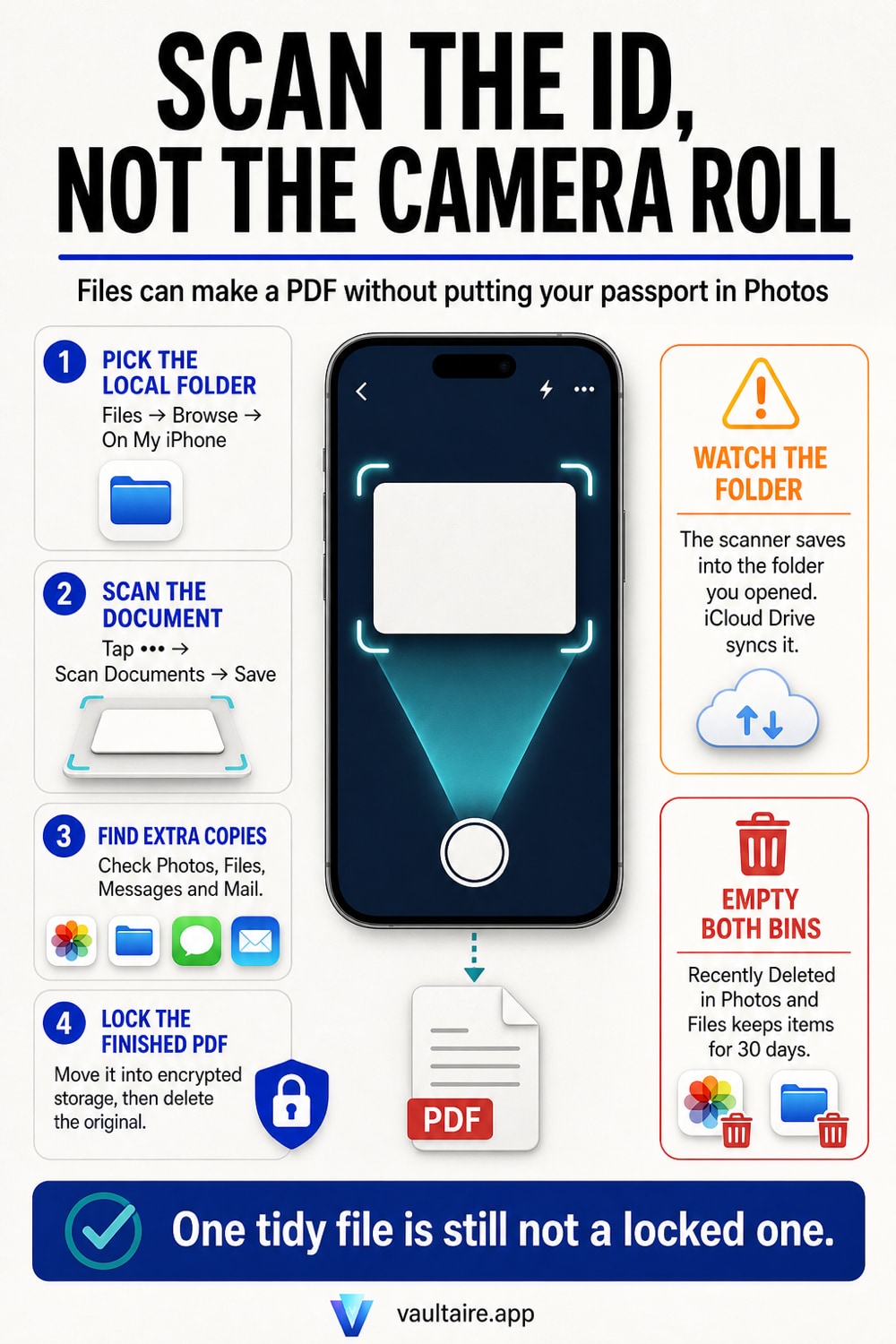
Open Files, tap Browse, tap On My iPhone, open or create a folder, tap the three dots at the top right, and choose Scan Documents. Hold the phone over the passport or card until the frame locks on, then tap Save. You get a cropped PDF in that folder, and nothing lands in your Photos library at all. That single detail is most of the privacy win, because a photo in Photos syncs to iCloud, is indexed by People and Places, and is readable by any app you granted full photo access. Two follow ups matter as much as the scan. First, watch the destination folder: the Files scanner saves wherever you were browsing, and the default is usually iCloud Drive, which puts the document on every device signed in to your Apple Account. On My iPhone keeps it local. Second, clean up the copies. Delete the practice shot in the camera roll, delete any duplicate PDF, then empty Recently Deleted in both Photos and Files, because each holds deleted items for 30 days and both stay readable the whole time. That gets the document down to one file in one place. It does not lock it. Files has no password on a folder and Notes locks a whole note rather than an attachment, so for a passport or a licence the last step is an encrypted vault app that opens with its own lock, separate from the phone passcode.
Where an iPhone scan actually goes
There are three ways to get a document into an iPhone and they end in three different places. Photographing it with the Camera app writes a picture into your Photos library. Scanning it in Notes attaches a PDF to a note. Scanning it in Files writes a PDF into the folder you were browsing. The scanners crop the page, straighten the perspective and drop the background, so they produce a better looking document than a photo does, but the reason to prefer them is the destination rather than the quality. Only the camera route puts your passport in the same library as your holiday pictures.
That distinction matters because the Photos library is the most connected store on the phone. It syncs to iCloud Photos, it feeds Memories, it is indexed by People and Places, it is searchable by text found inside the image, and it is exposed in full to every app you ever tapped Allow Access to All Photos for. A picture of a driving licence inherits all of that. It also carries the coordinates of wherever you took it, which is a separate problem covered in what metadata your iPhone photos carry. A scan made in Files carries none of it, because it never enters the library in the first place.
Use the scanner, and watch the folder
Open Files, tap Browse, then tap On My iPhone. Open the folder you want or make a new one, tap the three dots at the top right, and choose Scan Documents. Hold the phone over the document until the frame snaps to the edges, let it capture, then tap Save. Apple documents the same scanner in Notes, where it lives behind the attachment button, and either one produces a multipage PDF if you keep scanning before you save. For a passport that means the photo page and the signature page in one file rather than two loose images.
The step people skip is the destination. The scanner saves into whichever folder you were standing in, and on a phone set up with iCloud Drive turned on, that is usually iCloud Drive. A scan saved there is not just backed up, it is present: it shows in Files on your iPad, on a Mac you share with someone, and in Spotlight results on all of them. Choosing On My iPhone keeps the PDF on the handset. If you do want it in iCloud for safekeeping, turn on Advanced Data Protection first, because under the standard setting Apple holds keys to iCloud Drive, and the same reasoning applies to the tax paperwork in storing tax documents on an iPhone.
The copies you did not mean to make
Scanning one card often leaves four files. There is the practice photo you took before remembering the scanner. There is the PDF itself. There is frequently a second PDF, because the first attempt cut off a corner. And there is whatever you used to move the file: a message to yourself, a mail draft, a chat thread with the letting agent. Each of those is a full copy of your identity document sitting in an app with its own sync, its own backup and its own retention. The scan is only as private as the sloppiest copy of it.
So do the sweep in one pass. Delete the camera roll shot, delete the spare PDFs, and delete the message you sent yourself. Then empty Recently Deleted in Photos and, separately, Recently Deleted in Files, because each app keeps its own 30 day bin and each bin opens with a tap. If the document went out through Messages or WhatsApp, remember the copy on the other person's phone is beyond your reach entirely. Locking down what remains on your own device is covered further in locking the Files app on iPhone.
One tidy file is still not a locked one
At this point the passport scan is a single PDF in a local folder, which is a real improvement, and it is still readable by anyone holding your unlocked phone. iOS has no password on a Files folder. Notes can lock a note with Face ID or a separate password, which does help, but it locks the whole note rather than the attachment, and the lock is only as strong as the fallback it accepts. The practical trade offs between those two are laid out in locked Notes versus a vault app.
For an identity document the bar should be higher, because the cost of losing it is not embarrassment but an account opened in your name. The US Federal Trade Commission runs a recovery service for exactly that outcome, and reading its checklist is a quick way to see how much a stolen scan is worth. Vaultaire stores documents encrypted on the device, behind its own pattern lock, outside the Photos library and outside iCloud Drive, so a borrowed phone opens Files and finds nothing. Import the scan, delete the original, then empty Recently Deleted so the 30 day copy does not survive the cleanup.
Related guides
- Storing tax documents on an iPhone
- Locking the Files app on iPhone
- Locked Notes versus a vault app
- What metadata your iPhone photos carry
Sources
Frequently Asked Questions
Is it safe to keep a scan of my passport on my iPhone?
It is safe enough if the file is encrypted and stored in one place, and risky if it is a photo in your camera roll. The camera roll is the wrong home for it: that library syncs to iCloud, is indexed and searchable, and is readable in full by any app you granted access to all photos. A scanned PDF in a local folder is better, and a scan inside an encrypted vault app that opens with its own lock is better still. The question to ask is not whether the phone is safe, but how many apps and devices can already open that file.
Does the Notes scanner upload my scan to iCloud?
Yes, if Notes is syncing, which it is by default. A scan attached to a note travels with that note to every device signed in to your Apple Account. Locking the note encrypts its contents, and the note still syncs in that encrypted form. If you want the scan to stay on one device, either turn off Notes in your iCloud settings, which affects every note you have, or use the Files scanner and save into On My iPhone instead. The Files route is easier to reason about, because you can see exactly which folder the file went into.
Can I put a password on one folder in the Files app?
No. iOS gives you no way to lock an individual folder or an individual file in Files. The whole app is protected by the device passcode and nothing more, so once the phone is unlocked and in someone's hand, every document in it is one tap away. Some people work around this by putting the document in a locked note, which does encrypt it, and others move it off the phone entirely. The reliable answer for identity documents is an app that holds its own encryption keys and asks for its own lock before it opens.
I already photographed my ID into Photos. What should I do now?
Rescan it properly first, so you have a clean PDF before you delete anything. Then open Photos, delete the original picture, and empty Recently Deleted, since the photo stays viewable there for 30 days otherwise. Check your shared albums and any chat where you sent it, because deleting your copy does not touch theirs. Finally check iCloud on another device to confirm the deletion propagated. If the document has already been sent somewhere you do not trust, treat it as exposed and follow an identity theft recovery checklist rather than assuming deletion is enough.